Translates text and images. The mobile help also describes the conversation mode.
Read the text together with the original
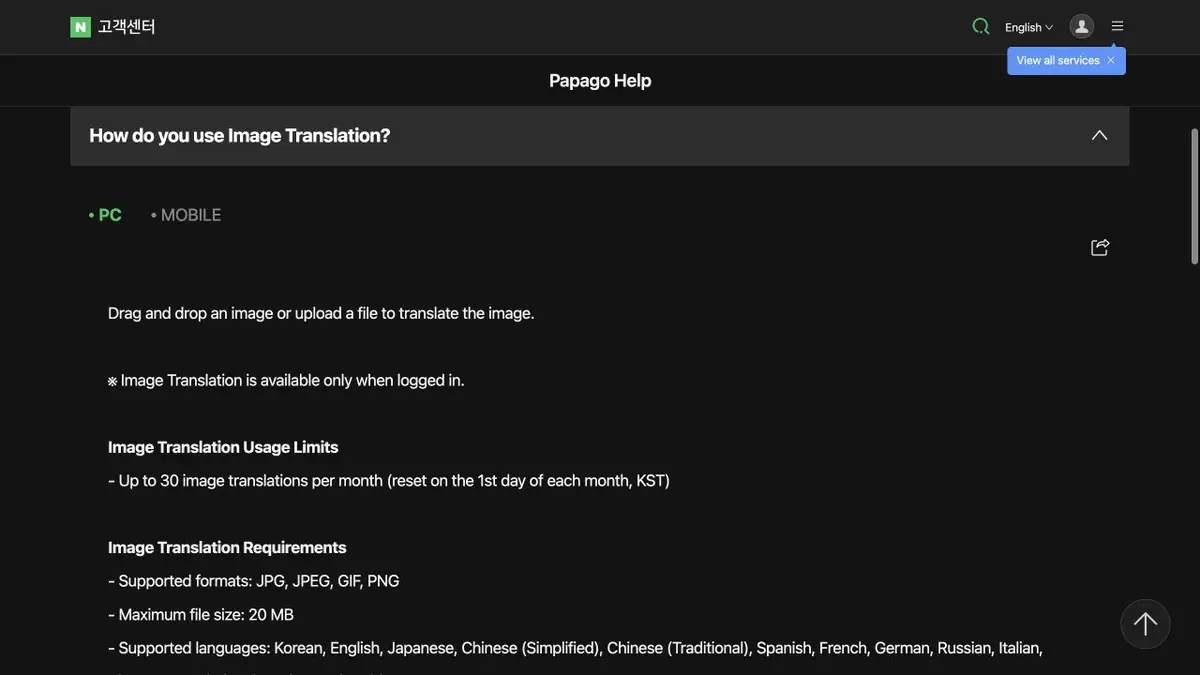
In a photo of a sign or notice, the placement of the text matters alongside its meaning. NAVER Papago translates text and images. Its help center provides separate instructions for desktop, mobile and different modes. When working with Korean, compare the recognized text with the photo. Translate a smaller portion again if adjacent lines were merged.
Remove faces and personal details from the image before uploading it. For a short sign, choose an evenly lit area where every letter is visible.
Checking ads with exception
Take a fictional ad for work hours, which has a regular schedule and a separate line for the holiday. First, translate the entire image, then process the line with an exception. Check the time and days of the week. If the application has recognized part of the word, try to enter a string manually and compare the meaning. An important reservation can be clarified with the employee or checked according to the official schedule.
In a conversation, choose two languages in advance and speak short lines in turn. A long sentence with a number is more convenient to divide and confirm the result separately.
Select a mode to task
The availability of image translation, conversation and other modes depends on the device and language. For a reference phrase, a translation in the browser is suitable. If the form of politeness and the exact meaning of the Korean inscription are important, compare the result with the original and ask the native speaker to confirm the ambiguous place.
Suitable tasks
- Translate the text on the photo
- Try a short line in Korean
Strengths
- There are modes of text and images
- The developer maintains a separate certificate for devices
Limitations
- A bad photo impairs recognition
- The set of functions depends on the language and device
Selection and conditions
- Free access
- Yes
- Trial period
- Not confirmed
- No sign-up required
- Not confirmed
- Russian interface
- Not confirmed
- Local installation
- Not confirmed
- API
- Not confirmed
“Not confirmed” means there is not enough information. The feature may still be available; check the developer’s terms.
- Input formats
- Text, Image, Audio
- Result
- Text
Terms
For the image, check the mode of your device and the quality of the picture.From task to first result
Practical example
- Task
- Translate the text on the photo
- What to prepare
- Your own message and a target language selected in the interface; check names and numbers separately.
Task brief or prompt
Hello! We confirm that we have received your message. We will clarify the completion timeline and contact you once we have checked the details. Thank you for your patience.
Expected result
A translation of the original message into the selected language, with no changed commitments or added promises.
How to check the result
- Check numbers, negations and deadlines.
- For important materials, have a native speaker check specialist terms and tone.
An editorial teaching example of a task brief, not the result of hands-on testing of the service. Check that the required mode is available, that you have rights to the source material and that the intended use of the result is permitted.
Check details
Official sources
This description is based on the developer’s material. Features, prices and availability may change; check the primary source before use.