Translates text and supported documents in the browser. Modes depend on language and device.
Translate file whole or multiple paragraphs
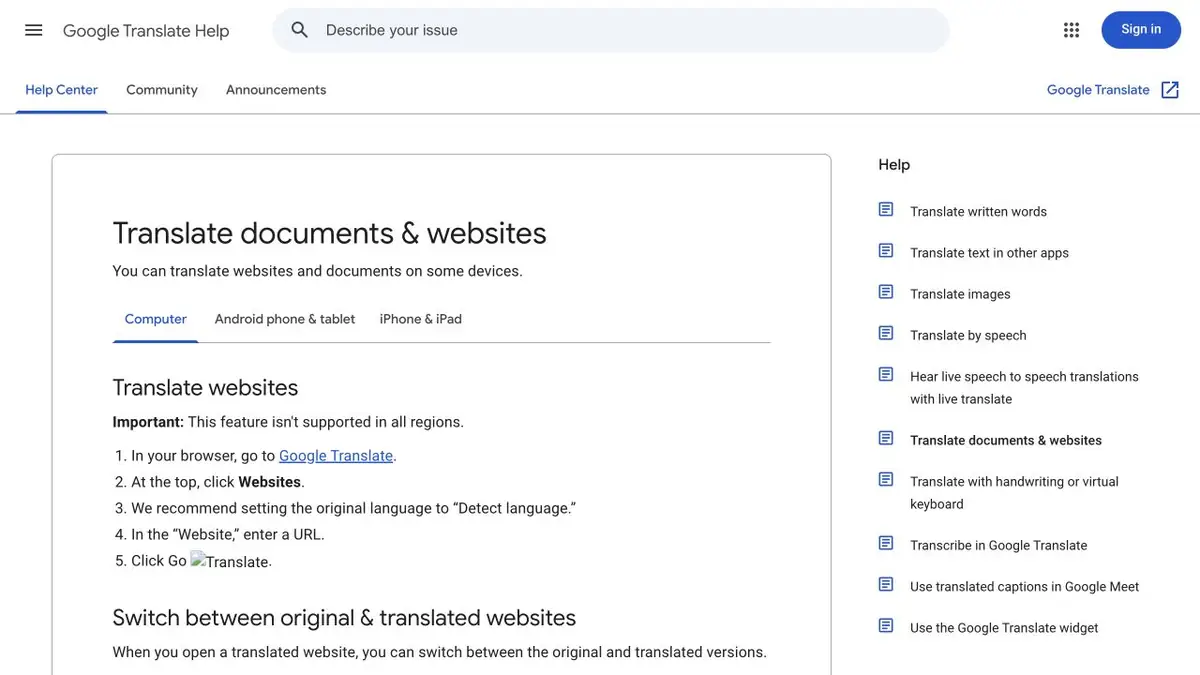
In Google Translate, you can insert text or open the document mode on a suitable device. This is convenient when there are many repetitive sections in the instructions. Google Help lists acceptable formats and size limits. In the mobile interface, the set of actions is different, so for a file, check the instructions for the computer first.
For a short sentence, add a sentence around it. The word "sample" can have several meanings, and the choice of translation depends on what the entire paragraph says.
What to check in the training instructions
Take a small instruction on the assembly of the rack. Leave one exception for the short model and a string with dimensions in the table. After translation, compare the titles, negations, and names of details. Check that the exception applies only to the desired model, and the dimensions have not moved to the next line. If the item is in doubt, translate it separately with the previous sentence and compare the options.
The scanned page may not have the text available for translation. See if the text layer is saved and whether signatures are read. If necessary, use the appropriate mode for images and check recognition.
Where is the border of automatic translation
Google has separately described new models and the gradual emergence of opportunities in different languages. For internal acquaintance it is usually enough to check the terms and figures. Before transferring technical text to users, it is worth asking a specialist to read the instruction along with the original. Especially important are places where one missed particle changes the action.
Suitable tasks
- Translate short technical instructions
- Verify translation of item names
Strengths
- Text and documents are available in one service
- There is a certificate about formats and devices
Limitations
- Functions differ by languages and devices
- Tables and exceptions require reconciliation
Selection and conditions
- Free access
- Yes
- Trial period
- Not confirmed
- No sign-up required
- Yes
- Russian interface
- Not confirmed
- Local installation
- Not confirmed
- API
- Not confirmed
“Not confirmed” means there is not enough information. The feature may still be available; check the developer’s terms.
- Input formats
- Text, Document, Image
- Result
- Text, Document
Terms
Use the appropriate device and supported format for the file.From task to first result
Practical example
- Task
- Translate short technical instructions
- What to prepare
- Your own message and a target language selected in the interface; check names and numbers separately.
Task brief or prompt
Hello! We confirm that we have received your message. We will clarify the completion timeline and contact you once we have checked the details. Thank you for your patience.
Expected result
A translation of the original message into the selected language, with no changed commitments or added promises.
How to check the result
- Check numbers, negations and deadlines.
- For important materials, have a native speaker check specialist terms and tone.
An editorial teaching example of a task brief, not the result of hands-on testing of the service. Check that the required mode is available, that you have rights to the source material and that the intended use of the result is permitted.
Check details
Official sources
- Google Translate in Browser
- Translation of documents and sites on the computer
- Development of translation models
This description is based on the developer’s material. Features, prices and availability may change; check the primary source before use.