Copilot Studio allows you to assemble an agent, configure his area of knowledge and check the answers in the Power Platform environment.
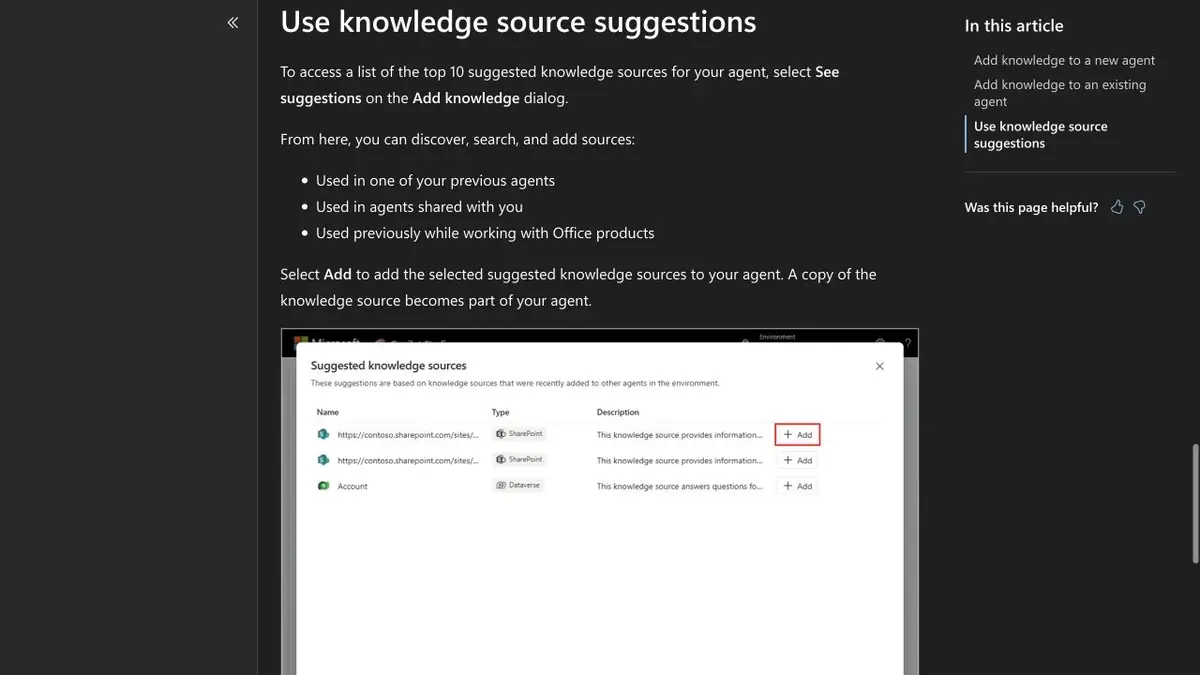
First, select the knowledge boundary.
Prepare a small set of current documents for an assistant handling internal requests. Copilot Studio can connect knowledge sources such as an approved SharePoint section or website. Which sources are available depends on the selected mode and administrator settings. State what each source is for. For two sections with similar titles but different rules, use descriptions that say who each document applies to and when.
Educational verification of documents and rights
Use a fictional employee handbook and a separate draft for administrators. Ask about a procedure that changed and check the date of the cited source. Then open the agent with ordinary user permissions. If that user should not see the draft, make sure the response does not reveal its contents. Testing from the owner's account does not show what an employee with fewer permissions can see.
Before publishing
Distribute questions that can be answered on the help, and requests that require action in the connected system. Use a separate test record to act and check what permissions are needed. Ask a question that is not answered in the sources. The result should show the boundary of knowledge and the next available step. After updating the documents, repeat a few initial questions to make sure the agent is accessing the correct version. For acceptance, save the dates and names of the sources used.
Suitable tasks
- Gather an agent on internal instructions.
- Check the source of the answer and access to it from different roles.
Strengths
- Connects different corporate sources of knowledge.
- Administrators can limit the types of sources.
Limitations
- A compatible environment and policy setting are needed.
- Licensing and availability depend on the organization.
Selection and conditions
- Free access
- Not confirmed
- Trial period
- Not confirmed
- No sign-up required
- Not confirmed
- Russian interface
- Not confirmed
- Local installation
- Not confirmed
- API
- Not confirmed
“Not confirmed” means there is not enough information. The feature may still be available; check the developer’s terms.
- Input formats
- Text, Document
- Result
- Text
Terms
Check the document rights and test the response in the target role.From task to first result
Practical example
- Task
- Gather an agent on internal instructions.
- What to prepare
- Allowed set of documents or saved working context with notes about the project.
Task brief or prompt
Find out what decisions on the project are confirmed by available sources. Specify the source of each decision, its date, if known, and unresolved issues. Separate the baseline information from the assumptions.
Expected result
Summary of confirmed decisions with verifiable references or indications to sources.
How to check the result
- Open these documents or context records.
- Make sure that the outdated discussion is not presented as a decision.
An editorial teaching example of a task brief, not the result of hands-on testing of the service. Check that the required mode is available, that you have rights to the source material and that the intended use of the result is permitted.
Check details
Official sources
This description is based on the developer’s material. Features, prices and availability may change; check the primary source before use.