Adds AI to the rules of the Asana project to parse the fields and prepare a task description.
Dismantling the queue of applications
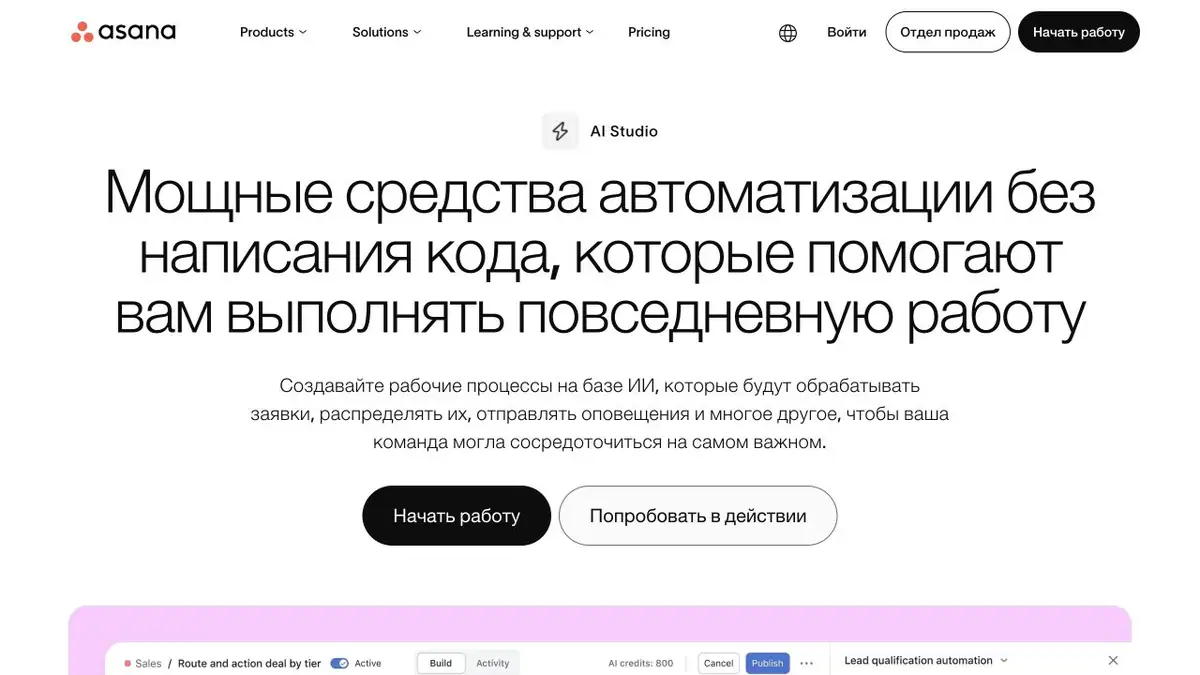
The design team receives applications for banners, layouts and site updates. The description in the form is written freely, so the coordinator again finds out which group each task belongs to. In Asana AI Studio, this can be done as a rule of the project. It works at a given event and uses the instruction for a separate step, for example, extracts the site and format of the work from the description.
The rule remains the usual conditions of Asana. It is useful to immediately limit them to the desired project and select the fields that really should be changed. If the team already has a directory of names, include it in the instruction instead of asking to come up with a suitable category.
The application has no format
For the training test, put three applications in the project. The first clearly indicates a banner, the second asks to correct the title on the site, and the third consists of the words "need to update the design." The last rule should leave a clear mark on the need for clarification. Verify the proposed description with the source code and separately make sure that the date from the comment has not become an approved deadline.
Look at the case of re-launch. If the coordinator refines the description, the result should remain clear and the original message should be retained.
Depends on the space
AI Studio works inside Asana. Before setting up, check whether the administrator has enabled AI functions and how much operation is provided for the plan. Start with a rough outline of the field. A rule with notifications or the appointment of performers makes sense to add after the team has analyzed controversial examples.
Suitable tasks
- Mark Task Queue
- Select Application Settings
Strengths
- Events and actions are set in one rule
- Initial tasks remain in the project
Limitations
- Access depends on the plan and administrator settings
- Vague applications require a staff member's decision
Selection and conditions
- Free access
- Not confirmed
- Trial period
- Not confirmed
- No sign-up required
- Not confirmed
- Russian interface
- Not confirmed
- Local installation
- Not confirmed
- API
- Not confirmed
“Not confirmed” means there is not enough information. The feature may still be available; check the developer’s terms.
- Input formats
- Text, Data
- Result
- Text, Data
Terms
You need an Asana project with the rights to configure the rule. Consider the limits of operations.From task to first result
Practical example
- Task
- Mark Task Queue
- What to prepare
- Anonymized application table, category directory and test entry without theme.
Task brief or prompt
Set the classification of incoming applications. Save the source text. Use only categories from the directory, and leave the application without a clear theme for verification to the employee.
Expected result
A category or check mark in the test set where the original description can be restored.
How to check the result
- Compare labels with manual markings.
- Re-process one record and check if a take has been created.
An editorial teaching example of a task brief, not the result of hands-on testing of the service. Check that the required mode is available, that you have rights to the source material and that the intended use of the result is permitted.
Check details
Official sources
This description is based on the developer’s material. Features, prices and availability may change; check the primary source before use.