

Photoshop lets you apply a generative edit to a selected area and then refine it with standard editing tools. For product images, this means control over masks, layers, and the final composition.
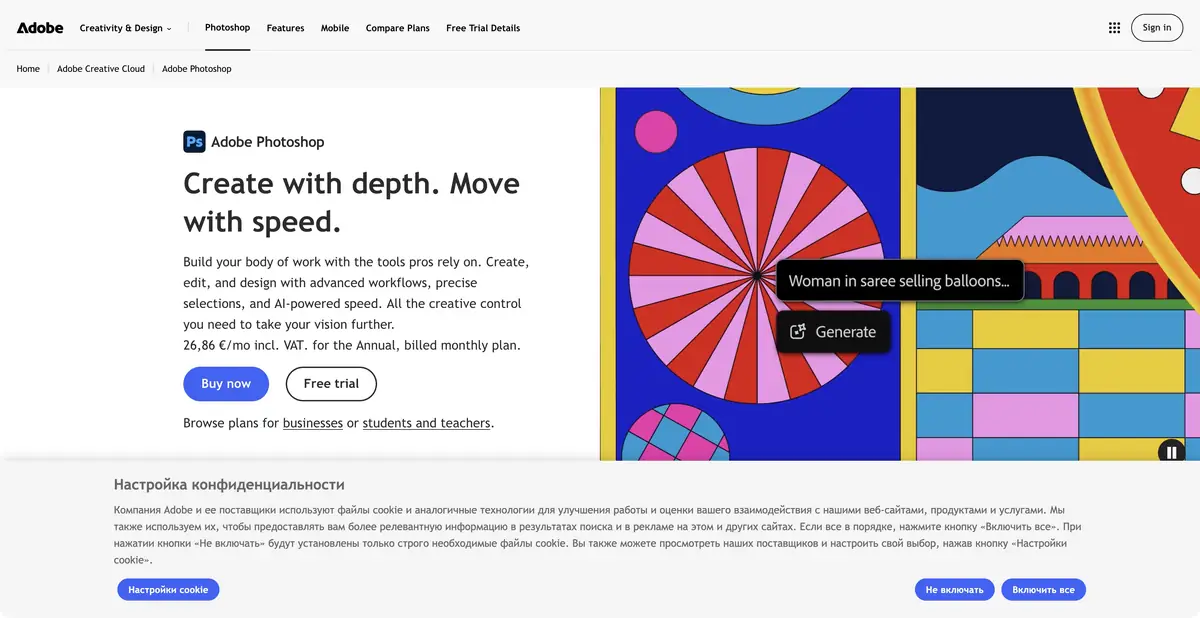
Generation within the editable project
When a photograph is almost finished, regenerating it entirely usually creates extra work. In Photoshop, select just the required area, apply Generative Fill, and continue editing in a familiar project. Layers and masks separate the original photograph from the added background and let you inspect their boundary. Photoshop is therefore a standalone editor, even though some generative operations use Firefly and available partner models. Its purpose goes beyond producing a picture from a description: it helps bring a specific file to the required state.
The selection matters more than a long prompt
Official help describes opening an image, selecting an area, choosing Generative Fill and a model, optionally entering a prompt, and comparing variants. Leave the prompt empty to fill based on surrounding pixels. Generative Expand extends the composition beyond its original boundaries. Available models and resource usage change, so specific release names do not replace checking within the app.
After generation, assess more than the attractive center of the image. Boundaries may show repeated textures, incorrect shadows, or shifted outlines. A successful background does not mean packaging text was preserved. Keep exact details on the original layer and protect them with a mask.
Example: horizontal banner from the photo
You have your own portrait-oriented photograph of a ceramic cup and need a landscape website banner with room for a heading. Save the original, expand the canvas, and select the empty side areas. Ask to extend the plain tabletop and neutral background without changing the cup. Add the heading on a separate editable text layer.
Compare the result with the original at the same scale: the handle, rim, glaze color, and maker’s mark should remain recognizable. Check the banner at its actual size on the page. This is an example editing brief; no actual image variant was generated or evaluated in a comparison test here.
Subscription and local work boundaries
Desktop Photoshop is subscription-based with a trial. Free mobile features have their own limits and do not provide ongoing free access to the full desktop editor. AI terms depend on the plan, operation, and chosen model; check credits and commercial-use rules before paying. The Firefly API is not equivalent to an API for every interactive Photoshop operation.
Standard editing and generative cloud features have different connectivity and data transfer requirements. Installing the program on a computer does not make the entire AI workflow offline. Using other people’s images requires rights, and using portraits requires a basis for using the person’s likeness. Keep the source and editable project: a single exported JPEG makes it harder to verify what was generated.
Suitable tasks
- Expand background for banner
- Change the selected image area
- Assemble a collage with masks and layers
- Prepare a product illustration
Strengths
- Generative edits work with layers and selections
- Precise manual refinement of the result
- Extensive official documentation
Limitations
- Check that details are preserved
- Generative functions are not considered fully offline
- The plan and the chosen model affect the resources
Selection and conditions
- Free access
- Not confirmed
- Trial period
- Yes
- No sign-up required
- Not confirmed
- Russian interface
- Not confirmed
- Local installation
- Not confirmed
- API
- Not confirmed
“Not confirmed” means there is not enough information. The feature may still be available; check the developer’s terms.
- Input formats
- Image, Text
- Result
- Image
Terms
A desktop trial is confirmed. Free mobile access does not extend to the entire editor; local AI processing and a general editor API have not been established.From task to first result
Practical example
- Task
- Expand background for banner
- What to prepare
- Your own photo of an object with a clear outline, which you have the right to edit.
Task brief or prompt
Replace the background with a light studio surface. Preserve the product’s shape, color, label and proportions; add a soft, natural shadow. Do not invent accessories or alter the product itself.
Expected result
A product photo with a new background, ready to be compared with the original.
How to check the result
- Compare the product’s outline and labeling with the original image.
- Zoom in to check reflections, the shadow and mask edges.
An editorial teaching example of a task brief, not the result of hands-on testing of the service. Check that the required mode is available, that you have rights to the source material and that the intended use of the result is permitted.
Check details
Official sources
- Official Adobe Photoshop
- Working with Generative Fill
- Selection for generative editing
- Trial period and versions
This description is based on the developer’s material. Features, prices and availability may change; check the primary source before use.