
Lightroom works with existing photos: it helps to select frames, develop RAW, highlight an object and remove interference. This is a photo editor and library, not a separate model of image generation.
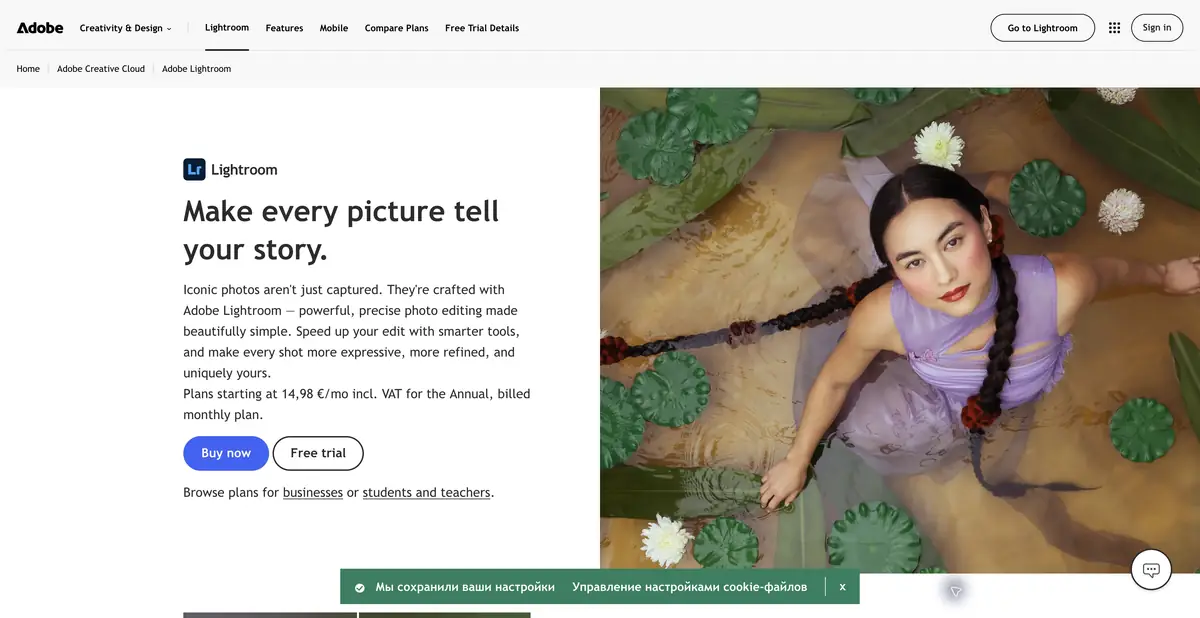
When the work starts with a photo shoot
After a walk or a commercial shoot, the priority is often to give the photos a consistent look rather than invent a new image. Lightroom combines photo organization, RAW development, cropping and local adjustments. AI assists with specific stages: selecting people or sky, reducing noise, searching and removing distractions. The photographer still judges exposure, color and composition.
There are desktop, mobile and web capabilities in the lineup, and Lightroom Classic has its own workflow. Check the availability of the right tool in the version used. Brand matching does not mean the same location of buttons, formats and ways to store originals.
Mask and generative removal solve different problems
The mask specifies the area in which the light, color or other settings change. It allows you to brighten your face without affecting the bright window, or reduce the saturation of the background. After automatic selection, inspect the edges of the hair and translucent parts. A border error can look imperceptible on a small preview and manifest itself when exporting.
Generative Remove, powered by Adobe Firefly, fills the area left by a removed object. The official documentation requires an internet connection. The result contains synthesized content and cannot be treated as a reconstruction of what the camera actually saw behind the object. Conventional remove, healing and clone tools are also available for small defects.
Small series in mixed light
Take a few of your portraits by the window and under the room lamp. First, select the successful facial expressions, then adjust the white balance and overall exposure on the characteristic frames. Transfer corrections between similar lighting conditions, and not to the entire folder indiscriminately. Use AI face mask for moderate local refinement.
Compare the skin, neutral surfaces and color of clothing in neighboring frames. When noise reduction, evaluate the hair and fabric, when removing the object - repeated background lines. Export multiple images with finite sizes and look them out of the editor. A successful preview setting does not guarantee a site-friendly file weight.
Subscription, storage and verification of conditions
Official plans differ in the composition of applications, cloud space and commitment period. The trial period helps to check your set of files, but is not a permanent free access to all AI functions. Mobile capabilities can also be at a paid level. Exact cancellation terms must be read before you sign up.
Don’t confuse having a desktop app with full autonomy: network operations and a cloud library have separate requirements. For responsible shooting, keep a backup copy of the originals and decide in advance which frames are allowed to upload to the cloud. Export parameters, color profile and the need for generative changes are selected for a specific publication.
Suitable tasks
- Develop and harmonize photo series
- Select the face, object and sky for correction
- Remove interference from existing photo
Strengths
- Archive and processing in one process
- AI Masks and Noise Reduction
- Official applications and detailed information
Limitations
- The possibilities differ between versions
- Generative Remove requires the Internet
- Subscription and cloud storage have separate terms
Selection and conditions
- Free access
- Not confirmed
- Trial period
- Yes
- No sign-up required
- Not confirmed
- Russian interface
- Not confirmed
- Local installation
- Not confirmed
- API
- Not confirmed
“Not confirmed” means there is not enough information. The feature may still be available; check the developer’s terms.
- Input formats
- Image, RAW file
- Result
- Image
Terms
Trial access is separated from permanent free mode. Generative Remove requires a network; the locality of the entire AI process and the separate public AI API are not declared without confirmation.From task to first result
Practical example
- Task
- Develop and harmonize photo series
- What to prepare
- Several own RAW or photos of one shooting, including complex shadows and thin edges of the object.
Task brief or prompt
Working task in the photo editor: to align the exposure and white balance, to moderate the noise, to highlight the object with a mask for a separate correction. Preserve the natural texture and color. This is a sequence of actions with settings, not a promise of textual management of each application.
Expected result
A processed photo with a saved original and a verified local correction.
How to check the result
- Examine the skin, tissue, hair and makeup boundaries at the same scale.
- Check the supported format, final size and availability of cloud operations.
An editorial teaching example of a task brief, not the result of hands-on testing of the service. Check that the required mode is available, that you have rights to the source material and that the intended use of the result is permitted.
Check details
Official sources
This description is based on the developer’s material. Features, prices and availability may change; check the primary source before use.