

Veo is a family of Google DeepMind video models. Features include creating scenes by text and images, and supported models have sound generation along with video.
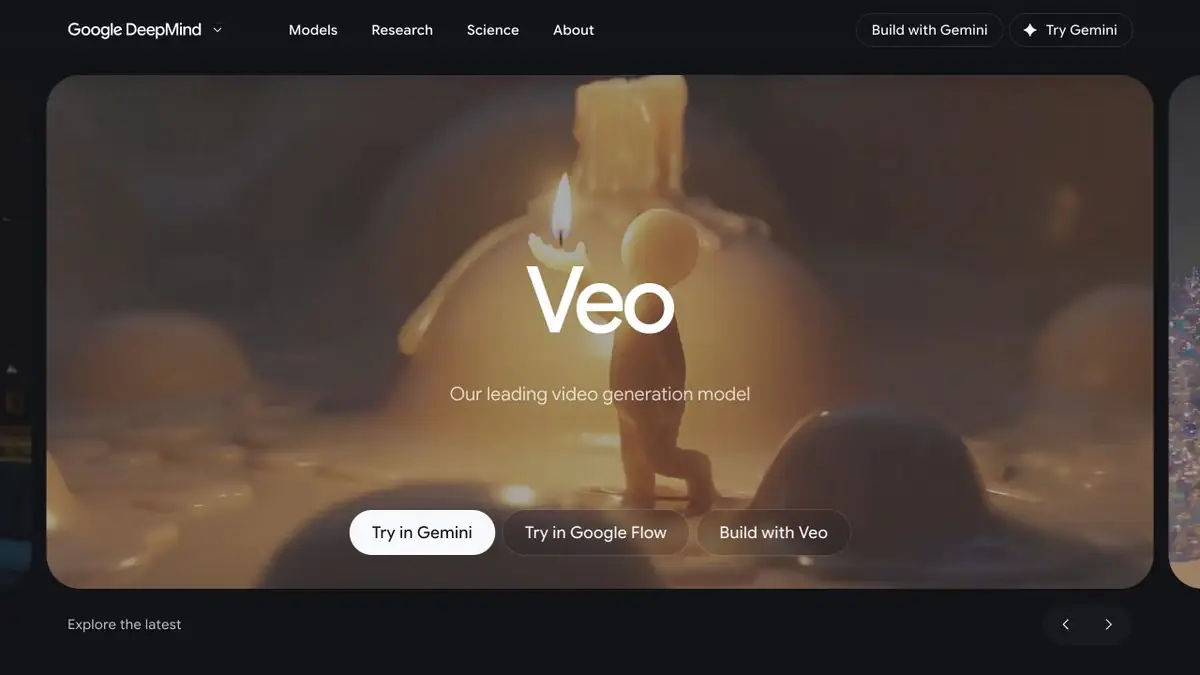
Veo and Google products
Veo is a model name, not every website with “Veo AI” in its address. The official Google DeepMind page shows its capabilities and links to Google products. Programmatic integration requires choosing a supported cloud channel and an available model separately.
This matters because model ranges change: preview releases in an API can be retired while the family remains available. Veo 3.1 Preview in Gemini API, for example, has ended, while Google Cloud documentation still covers particular Veo models. Check the current list and support period before integration.
From description to video scene
In a prompt, separate the story, action, camera movement and soundscape. Instead of simply asking to “make it beautiful”, describe what the viewer should see and hear in the short clip.
The input image helps to specify the composition. Support for references, initial and final frames and continuation depends on the model and product. Not all settings from the demonstration page are available in each user account.
Audio and editing
Some Veo models create ambience, sound effects or speech as well as movement. Check that audio fits the scene and words are intelligible. Generating both together does not guarantee correct pronunciation or the absence of unwanted details.
A finished video usually needs editing: selecting takes, transitions, titles and checks for consistency between scenes. Start with one self-contained scene rather than requesting a long story with many actions.
How to describe a scene
Start with a simple outline: who is in the scene, what happens, where the camera is and what sound is needed. A product scene might show an object slowly turning against a subdued background. This is a clearer first attempt than a complex sequence with several characters.
Compare the generated action with the description. If camera movement differs, change that part of the prompt while preserving the rest. If the object itself changes, try refining the initial frame and references. This helps distinguish task-framing problems from model limits.
Checking the result and access
Inspect the entire clip: geometry, movement, lettering and cause-and-effect relationships may go wrong. Developer demonstrations show capabilities, but do not promise the same result from every prompt.
Quotas, regions and payment depend on the chosen Google product. For cloud work, you need an appropriate project and access settings; a consumer subscription is not equal to a cloud quota.
Suitable tasks
- Visual scenes from the script
- Animation of the source frame
- Previsualizing a shoot
- Video with a generated soundscape
Strengths
- A model from Google, the original developer
- Working with text and images
- Audio features in supported models
Limitations
- Access channels and versions change
- Regional and quota restrictions apply
- Check physics, speech and details
Check details
Official sources
This description is based on the developer’s material. Features, prices and availability may change; check the primary source before use.


