

Short video editor with speech transcription, caption styles and tools for automating the rough cut.
From Decoding to Titles
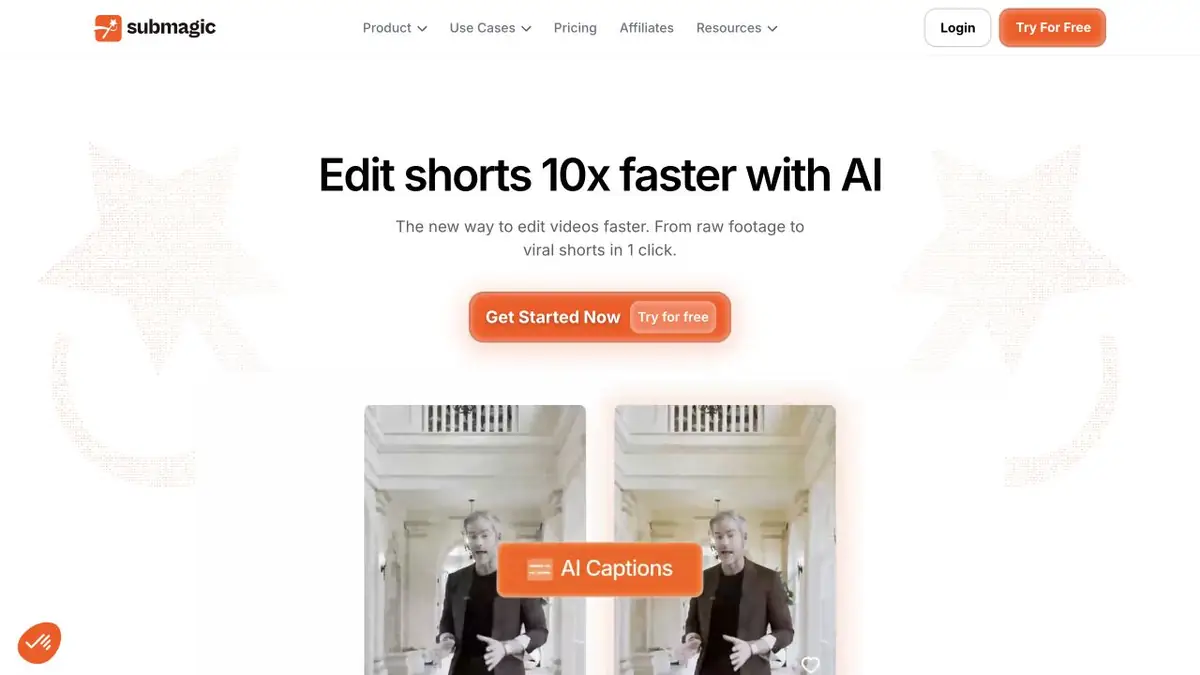
Submagic is designed for short talk clips. The editor recognizes speech and places subtitles on the video. You can change the text and design, then check how the signatures look in the frame. Read speed is more important than effects, especially when several numbers or names are heard in one fragment.
Auto Edit creates an initial cut. The official help describes the automated pass, after which you can continue editing. Keep the original so you can tell if the draft lost an important pause or cut a qualification.
Example with instructions for the phone
Prepare a minute video about changing the filter in the coffee maker. After recognition, check the name of the part and the order of operations. Watch the video with the sound turned off: if the action can not be understood by the image and titles, add a separate phrase or return the desired frame.
In vertical format, do not put subtitles near the place where the video display service displays buttons. Check the height of the letters and the position of important details on a small screen.
Restrictions on publication
Watermarks, permits and the number of exports depend on the plan chosen. Before mounting the entire series, make one trial export with the original track and subtitles. If the processing adds music or inserts, check their terms of use. Check unfamiliar names and words in another language with the original record manually. It’s easier to see the substitutions that change the meaning of the whole phrase.
Suitable tasks
- Add subtitles to the spoken video
- Create a rough cut of a short video
Strengths
- Title styles and editing in one editor
- Separate Auto Edit Mode
Limitations
- Recognized names and numbers must be subtracted
- Plans have different export limits
Selection and conditions
- Free access
- Not confirmed
- Trial period
- Not confirmed
- No sign-up required
- Not confirmed
- Russian interface
- Not confirmed
- Local installation
- Not confirmed
- API
- Not confirmed
“Not confirmed” means there is not enough information. The feature may still be available; check the developer’s terms.
- Input formats
- Video
- Result
- Video, Subtitles
Terms
The browser-based service processes uploaded video.From task to first result
Practical example
- Task
- Add subtitles to the spoken video
- What to prepare
- A short video about changing the filter in the coffee maker.
Task brief or prompt
Create a rough cut with Auto Edit. Check the captions against the original recording and make sure important pauses are still there.
Expected result
Black video with verified titles.
How to check the result
- Verify the name of the detail and the procedure.
- Make sure that the titles are read on a small screen.
An editorial teaching example of a task brief, not the result of hands-on testing of the service. Check that the required mode is available, that you have rights to the source material and that the intended use of the result is permitted.
Check details
Official sources
This description is based on the developer’s material. Features, prices and availability may change; check the primary source before use.