

Rodin is Hyper3D's own 3D generation system. It helps turn a visual idea into a three-dimensional asset that you can inspect, refine and download in a format suited to your project.
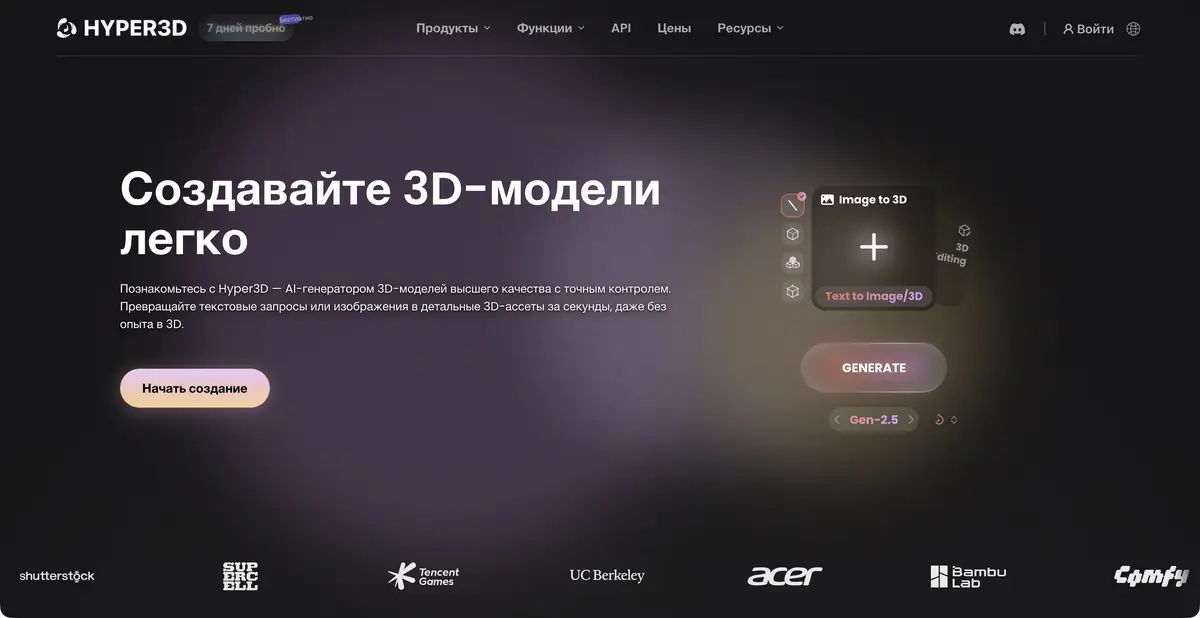
When you need a three-dimensional object rather than another view
One illustration explains the mood of the subject well, but does not show it from behind and below. Rodin builds a three-dimensional model by image or text, and additional angles can give more visual cues. This is useful for props, display items, game items and early form options. Hidden parts of the object remain the result of generation, not a reliable measurement.
How to work with references
The web interface combines geometry and material creation with result previews. Prepare an image that clearly shows the object; multiple images can provide additional views of the same item. The API documentation distinguishes combining views from blending features, so do not choose the input mode at random.
The official export list includes STL, FBX, OBJ, GLB, GLTF and USDZ. Format availability does not make a model suitable for every use case. Check materials and file size for interactive viewing, geometry and physical dimensions for printing, and mesh quality and further preparation for animation.
Example: an object for an interactive showcase
Suppose you need a three-dimensional sketch of a small vase. Start with your own image showing the silhouette and neck clearly. If you have a photo from another side, add it as a reference for the same object. Do not mix photographs of different vases if you want to preserve one specific shape.
In the finished preview, check the back, the inside of the neck and the transition to the base. Textures can hide geometry defects, so inspect a neutrally lit version and open the exported file in your own software.
For a catalog of real goods, check the model with the object and its dimensions. The generated vase may be suitable for the demonstration scene, but a verified measurement or the original CAD file is needed for the exact specification.
Programmatic access and further processing
The official API describes generation as an asynchronous task: uploading source materials, checking status and downloading the result are separate steps. Access terms and request frequency depend on the plan. Artists may find it easier to start with the web workflow and automate a proven, recurring use case later.
Meshes, UVs and PBR materials save some work but do not replace checks in the target project. Inspect normals, fine details, intersections, scale and transparent materials. Pay particular attention to objects with holes, complex internal cavities and details absent from the references.
Preview and paid export are separate stages
Hyper3D's pricing page describes a pay by result approach: initial generation and previews do not mean all variants can be freely downloaded. The free tier has export limits; advanced settings, private assets and API access are distributed across paid offerings.
Before starting, check which step uses credits, exactly what you may export and whether the license suits a commercial project. For confidential materials, separately examine storage and team access terms; a general security claim in marketing does not replace an agreed contract.
Suitable tasks
- Create a three-dimensional starting model from an image
- Prepare props for a game or visualization
- Get a model for further checking and printing
- Embed 3D generation into your own production process
Strengths
- Rodin's own generation system
- Single-view and multi-view visual input
- Work with geometry and materials
- Documented APIs and export formats
Limitations
- Unseen parts of a real object are generated from assumptions
- Free preview does not mean unlimited export
- Commercial license and API depend on the plan
Selection and conditions
- Free access
- Yes
- Trial period
- Not confirmed
- No sign-up required
- Not confirmed
- Russian interface
- Not confirmed
- Local installation
- Not confirmed
- API
- Yes
“Not confirmed” means there is not enough information. The feature may still be available; check the developer’s terms.
- Input formats
- Text, Image
- Result
- 3D model, Image
Terms
The free tier lets you explore generation and previews; check export limits, result confirmation and API access separately.From task to first result
Practical example
- Task
- Create a three-dimensional starting model from an image
- What to prepare
- Description of the table lamp or your own photos of the object from different sides. Clarify the purpose of the model and the target 3D-editor.
Task brief or prompt
Prepare a rough 3D model of the table lamp for the interior scene: a stable base, separate lampshade, simple materials. Use your own references. First, evaluate the form, then prepare an export format available in the selected plan.
Expected result
A rough object model for subsequent checking in a 3D editor. Geometric accuracy and production readiness are not assumed.
How to check the result
- Examine the silhouette from all sides, cavities, fine details and intersections.
- Check the scale, materials and opening of the exported file in the target editor.
- Before commercial use, check the selected plan's license and the rights to reference materials.
An editorial teaching example of a task brief, not the result of hands-on testing of the service. Check that the required mode is available, that you have rights to the source material and that the intended use of the result is permitted.
Check details
Official sources
This description is based on the developer’s material. Features, prices and availability may change; check the primary source before use.

