

Tripo combines three-dimensional object generation with subsequent asset preparation. It suits exploring visual options; define mesh, license and format requirements before export.
From a reference to an editable asset
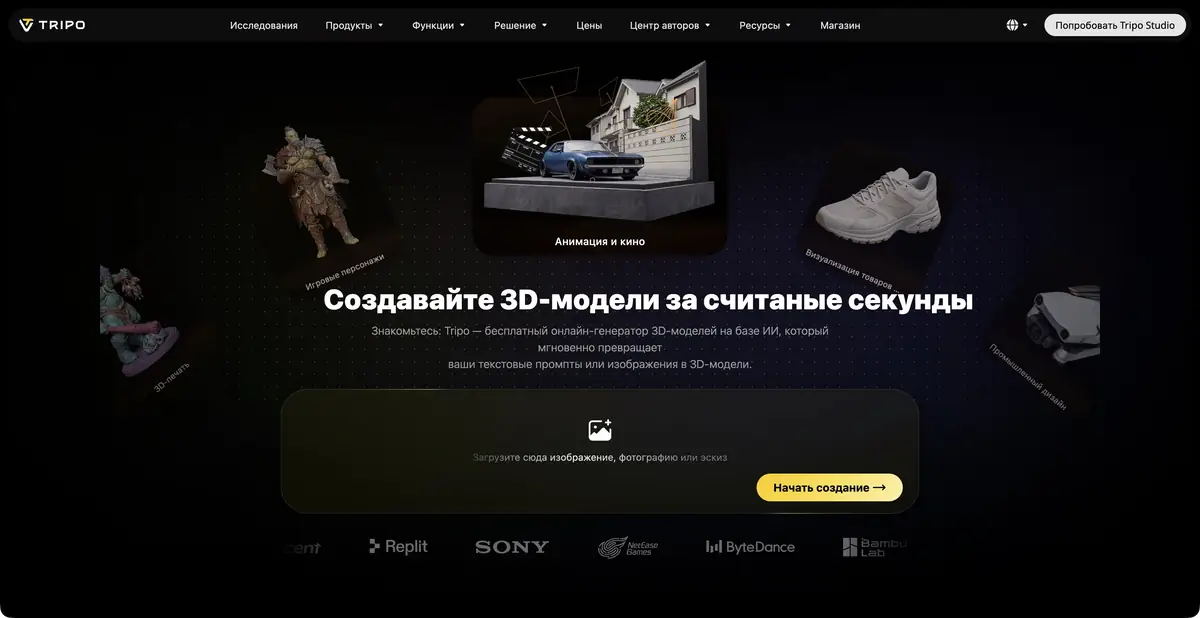
Tripo Studio accepts a description, one image or multiple views of an object. You can further process the resulting model: work on materials, topology and individual parts, then prepare it for another program. Saving intermediate versions is useful alongside the initial generation, so you can compare changes and retain successful results.
Inputs and result checks
Official documentation distinguishes text, single-view visual, multi-view and batch inputs. Post-processing for existing meshes includes texturing and retopology. Advanced operations depend on the selected plan and mode.
Listed export formats include FBX, OBJ, GLB/GLTF, USDZ and STL. Choose for the next task: browser viewing and printing, for example, serve different needs. Open a test export before batch work, particularly if the project requires a specific material structure or complexity limits.
Practical scenario: several options for a table lamp
Suppose you need to choose a lamp shape for an interior sketch. Prepare an image with a clearly defined lampshade and base, or a short description of the main proportions. First establish a clear three-dimensional form, then work on the finish. This makes it easier to see whether you liked the shape itself or just the striking material gloss.
After generation, rotate the object: the underside of the base, the joint between the stem and lampshade, and the back often need special attention. Save a suitable variant and try changes in the next version.
When importing, check scale, object-center position and textures. This workflow does not replace industrial design: the generated lamp is a visual asset, not a validated electrical or structural design.
Automation does not remove the need for mesh checks
Tripo has an official API for generating and processing models, as well as rigging and animation operations. Programmatic access helps repeat a known workflow and process multiple tasks. The Studio subscription and API have separate billing terms: one account does not mean shared unlimited access.
For a game or interactive project, separately assess mesh density, normals, UV mapping and material behavior under your lighting. Choosing topology reduces some preparation, but does not prove every generated result is suitable for animation or low-powered devices.
What the free plan means
Free lets you try the workflow within allocated resources. Its pricing page specifies public models and non-commercial use, along with storage, history and export limits. Paid plans change these terms and expand production tools.
Before uploading a private concept, check privacy for your specific plan. For a commercial asset, retain the current license terms and rights to source images. Compare subscriptions by the required operation and ability to download results, as well as credit counts.
Suitable tasks
- Create a game or interior asset from an image
- Compare three-dimensional form variants
- Refine the texture and topology of the model
- Automate recurring 3D operations
Strengths
- Multiple types of input
- Post-processing and history of model versions
- Common export formats
- Separate official API
Limitations
- Free models are public and not intended for commercial use
- Mesh complexity and materials must be checked in the target application
- Studio and API follow separate billing rules
Selection and conditions
- Free access
- Yes
- Trial period
- Not confirmed
- No sign-up required
- Not confirmed
- Russian interface
- Not confirmed
- Local installation
- Not confirmed
- API
- Yes
“Not confirmed” means there is not enough information. The feature may still be available; check the developer’s terms.
- Input formats
- Text, Image, 3D model
- Result
- 3D model, 3D animation
Terms
Free provides for public models and non-commercial use; paid Studio and API have separate terms.From task to first result
Practical example
- Task
- Create a game or interior asset from an image
- What to prepare
- Description of the table lamp or your own photos of the object from different sides. Clarify the purpose of the model and the target 3D-editor.
Task brief or prompt
Prepare a rough 3D model of the table lamp for the interior scene: a stable base, separate lampshade, simple materials. Use your own references. First, evaluate the form, then prepare an export format available in the selected plan.
Expected result
A rough object model for subsequent checking in a 3D editor. Geometric accuracy and production readiness are not assumed.
How to check the result
- Examine the silhouette from all sides, cavities, fine details and intersections.
- Check the scale, materials and opening of the exported file in the target editor.
- Before commercial use, check the selected plan's license and the rights to reference materials.
An editorial teaching example of a task brief, not the result of hands-on testing of the service. Check that the required mode is available, that you have rights to the source material and that the intended use of the result is permitted.
Check details
Official sources
This description is based on the developer’s material. Features, prices and availability may change; check the primary source before use.

