

Captions helps turn recorded footage into a short, finished video. The app keeps the name Captions, while its developer is called Mirage.
Editing a talking-head video after filming
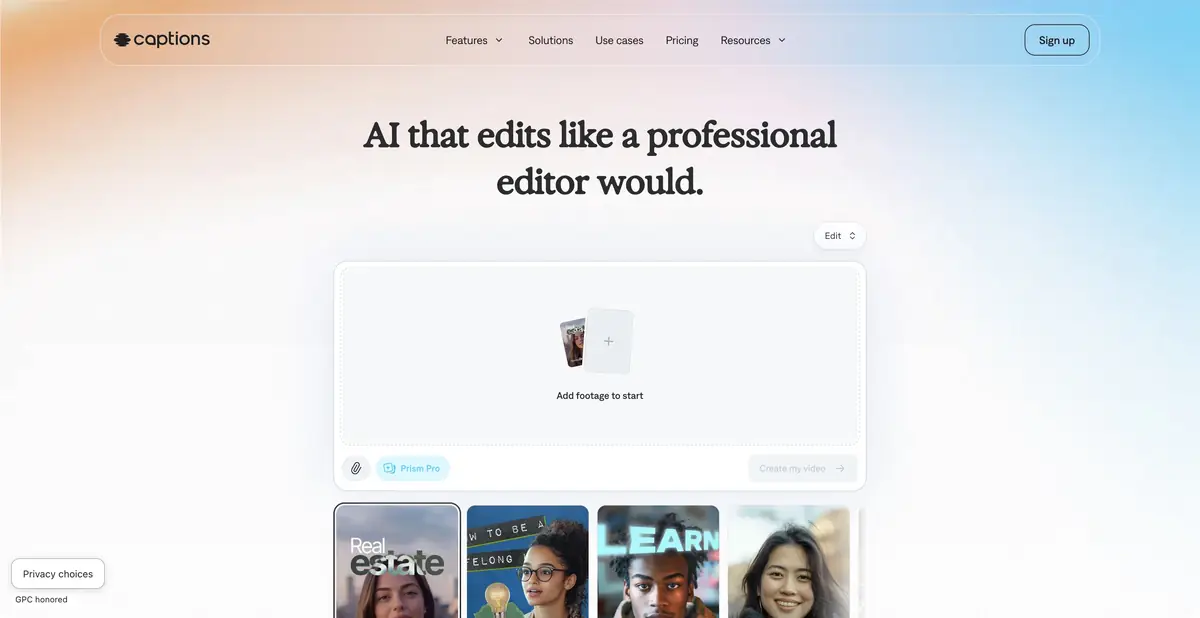
A short explainer video needs to sustain one idea: choose a strong opening, remove an unnecessary pause, and avoid crowding the screen with text. Captions lets you submit recorded footage for AI editing, select a style, and then refine the result. The official site describes automatic scenes, extra shots, subtitles, and an editor that accepts changes in text prompts. The user remains responsible for the statement’s meaning and for whether inserted footage actually shows the action being described.
AI Edit and generated assets
AI Edit works with existing footage; other modes can create new assets, AI actors, or a digital likeness of the creator. These are different production tasks. For a standard expert recording, first assess the edit of the person’s actual speech, adding images only where they help explain the subject. A generated shot should not depict a product outcome that never happened.
The official site supports refinements through chat. This works well for scoped requests: reduce the visual styling, replace a cutaway, or change subtitles at a particular point. “Make it more interesting” is harder to verify than a specific request to retain a qualification and move a caption off someone’s face.
Example: a craftsperson answers a common question
Record your own answer explaining how to prepare shoes for repair, listing three actual steps. Submit it to AI Edit, choose restrained styling, and inspect the proposed structure. If the original speech says “do not use solvent,” check that the negation remains in both audio and subtitles. Ask to remove any insert showing an unsuitable product.
Check the finished file: is the text readable, does the cutaway match the actual procedure, and has the end of a thought been cut off? Rhythmic editing can accidentally turn cautious advice into an unconditional instruction. This example is not based on our personal Captions testing and does not promise automatic video accuracy.
What to clarify in the plan
The pricing page lists subscriptions and AI credits but explicitly states that the displayed features and prices apply to iOS. Check web and other platform terms separately. The selected sources do not confirm an ongoing free AI plan or a general public product API. The company was renamed Mirage, but a separate Mirage card for the same app would create a duplicate.
Using a person’s digital likeness and voice requires permission and agreed limits on use. Keep the original recording and approved text. For team materials, clarify upload retention and data-use terms in advance: a subscription alone does not establish privacy across every mode.
Retaining the original take helps revisit a disputed phrase and determine whether an error came from speech, recognition, or a new editing choice.
Suitable tasks
- Edit your own talking-head video
- Add and correct subtitles
- Request a specific video edit through chat
- Prepare a short explanation
Strengths
- AI video editing with follow-up changes in text
- Speech and subtitle editing in one workflow
- Separate workflows for editing original footage and generative modes
Limitations
- The pricing page treats iOS separately
- AI can change the emphasis of an edit
- Permissions are required for likeness and voice
Selection and conditions
- Free access
- Not confirmed
- Trial period
- Not confirmed
- No sign-up required
- Not confirmed
- Russian interface
- Not confirmed
- Local installation
- Not confirmed
- API
- Not confirmed
“Not confirmed” means there is not enough information. The feature may still be available; check the developer’s terms.
- Input formats
- Video, Text, Image, Audio
- Result
- Video
Terms
Paid plans and credits apply; the public table covers iOS. Ongoing free access, an API, and local AI processing have not been confirmed.From task to first result
Practical example
- Task
- Edit your own talking-head video
- What to prepare
- A short instructional script and your own videos, photographs and voiceover demonstrating the action.
Task brief or prompt
Assemble instructions with sequential steps, clear captions and pauses to inspect details. Do not add unverified product properties. If a required shot is missing, flag the gap instead of inventing a demonstration.
Expected result
A rough edit of an instructional video. Available generation operations, formats and export options depend on the service and plan.
How to check the result
- The order of shots matches the actual sequence of actions.
- Captions are readable on a phone and do not obscure important details.
- Speech, music, subtitles and rights to each source material are verified.
- Check the watermark, resolution, storage and export format before paying or publishing.
An editorial teaching example of a task brief, not the result of hands-on testing of the service. Check that the required mode is available, that you have rights to the source material and that the intended use of the result is permitted.
Check details
Official sources
This description is based on the developer’s material. Features, prices and availability may change; check the primary source before use.