A practical guide
How to remove vocals in Moises and save a backing track
For rehearsal, you need a song without the original singer. Follow the process from the source file to a backing track and learn why the export mode matters when downloading it.

Prepare a file for rehearsal
You do not have to find an existing backing track to sing your favorite song with accompaniment. Moises separates a recording into vocals and instruments so you can mute the voice. Listen to the result carefully: some elements of the arrangement may change along with the singer, and traces of the vocal can remain in the chorus.
Start with one song you want to rehearse and keep a separate copy of the original. Use a good quality file you have access to rather than recording music through a phone microphone. Before uploading it, listen to the quiet intro, a busy chorus and the end of the song. Return to these passages when comparing the separated version.
Open Moises in a browser and sign in. The steps below cover the browser version; the controls are arranged differently in the mobile app. The current help allows five uploads per month on the free plan, with files up to five minutes long. Check your remaining allowance before starting, especially if you want to compare several versions of a song.
Start with vocals and instrumental
Under Track Separation, click New and choose a file from your device. Continue with Next. Select the two stem option: Vocals and Instrumental. That is enough for a basic backing track; you do not need separate controls for bass, drums and guitar.
Click Submit and wait for processing, then open the song in your library. The free plan also offers separation into four stems, but more parts do not automatically make a better backing track. Choose this option if you actually intend to change which instruments remain in the accompaniment.
Mute Vocals and check what remains
Find the Vocals track in the mixer and press M to mute it. The S button does something different: it solos the selected track and mutes all the others. If you accidentally press S on the vocal track, you will hear almost the opposite of the intended result.
Start playback where the singing begins. The accompaniment should play while the lead vocal stops competing with your own part. Unmute the vocal for a few seconds, then mute it again. This makes it easier to hear whether important elements of the music disappeared along with the voice.
Keep the original tempo and key at this stage. Changing several parameters at once makes comparison harder because you cannot tell which change made the sound less natural.
Listen to the chorus and word endings
Judging a backing track only by the intro tells you little if nobody is singing there yet. Listen to a busy chorus, a sustained note and a passage where the voice fades against the music. Headphones make it easier to notice remaining syllables, hollow vocal traces and uneven instrumental sound. For rehearsal, also check that you can clearly hear the rhythm and the point where your part begins.
If another voice remains, decide whether you want it in the accompaniment. Keeping backing vocals can help a solo performance, but they may get in the way when you plan to sing your own harmonies. The Premium help lists separate Lead Vocals and Background Vocals. This is an additional separation option with the relevant access, rather than a feature to expect on the free plan.
Evaluate a paid option on your own song as well. If the result distracts you from singing, compare another available separation option or look for an official instrumental version. Rehearsal needs a usable accompaniment; a barely audible trace of the vocal does not always justify lengthy processing.
Download Audio Mix to save the finished backing track
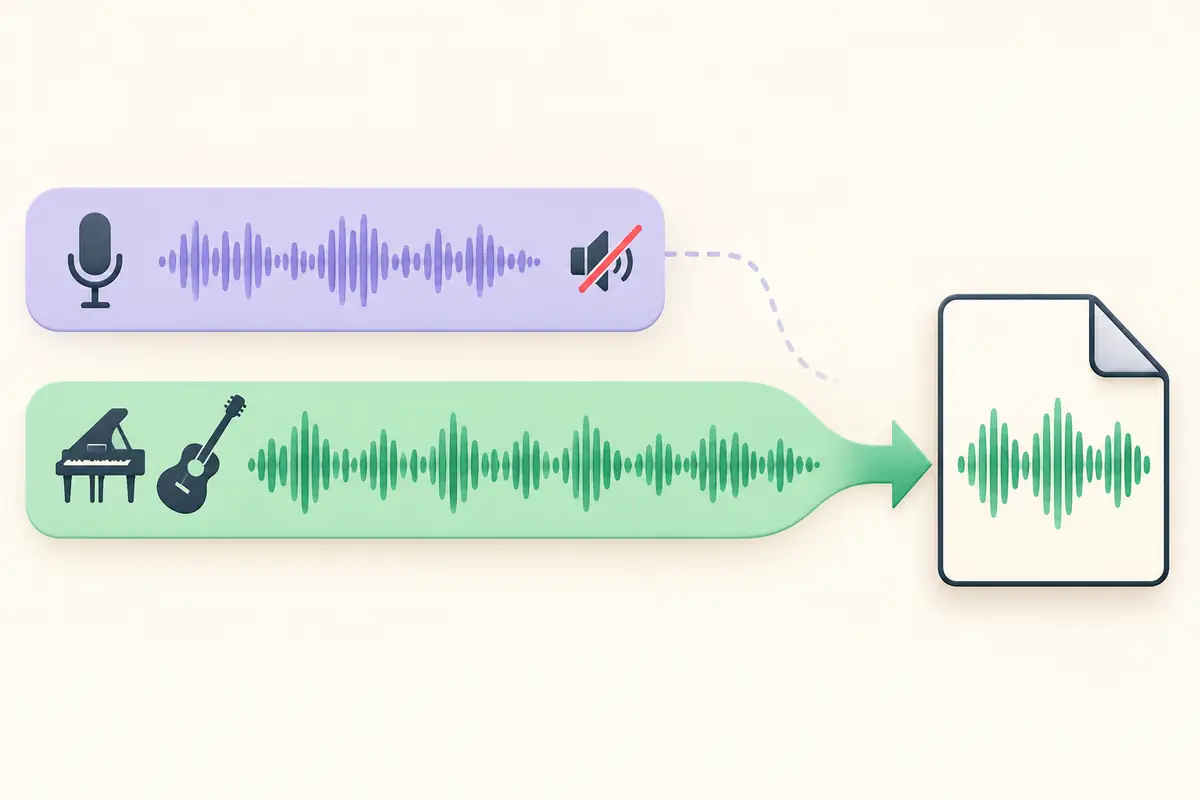
When the accompaniment sounds right, click Export. To create one finished file, select Audio Mix, then Export Mix. This mode saves the mix with your changes. Before exporting, make sure Vocals is still muted.
Separate Tracks exports individual parts. It is useful when you want to continue editing in another application. According to Moises, this export does not include changes made to the audio; in particular, the downloaded stems do not retain changes to pitch or speed. Export All packages these tracks in a ZIP file instead of creating a single backing track with your mixer settings.
The browser version offers MP3, M4A and, for Premium or Pro users, WAV. Choose a format your device supports. A WAV file does not prove that the separation is perfect: listen for remaining vocals and damage to the instrumental sound, regardless of the file extension.
Open the downloaded file outside Moises
Open the backing track in a regular audio player. Check the beginning, the end, the volume, whether the whole song is present and the chorus you inspected earlier. Then sing along to a short passage on the device you will use for rehearsal. Settings in the open project do not prove that you downloaded the intended version.
Give the file a name that distinguishes it from the original. If you later change the tempo or key, save a separate version and choose Audio Mix again. Before a performance, check that the file plays without access to your account.
Before publishing a cover or distributing the accompaniment, check the rights to the original recording. Moises says it does not claim ownership of your outputs, but you must hold the necessary rights to the material used. Removing the vocal does not grant that permission.