Upscale.media enlarges and enhances images.
More pixels with mandatory verification
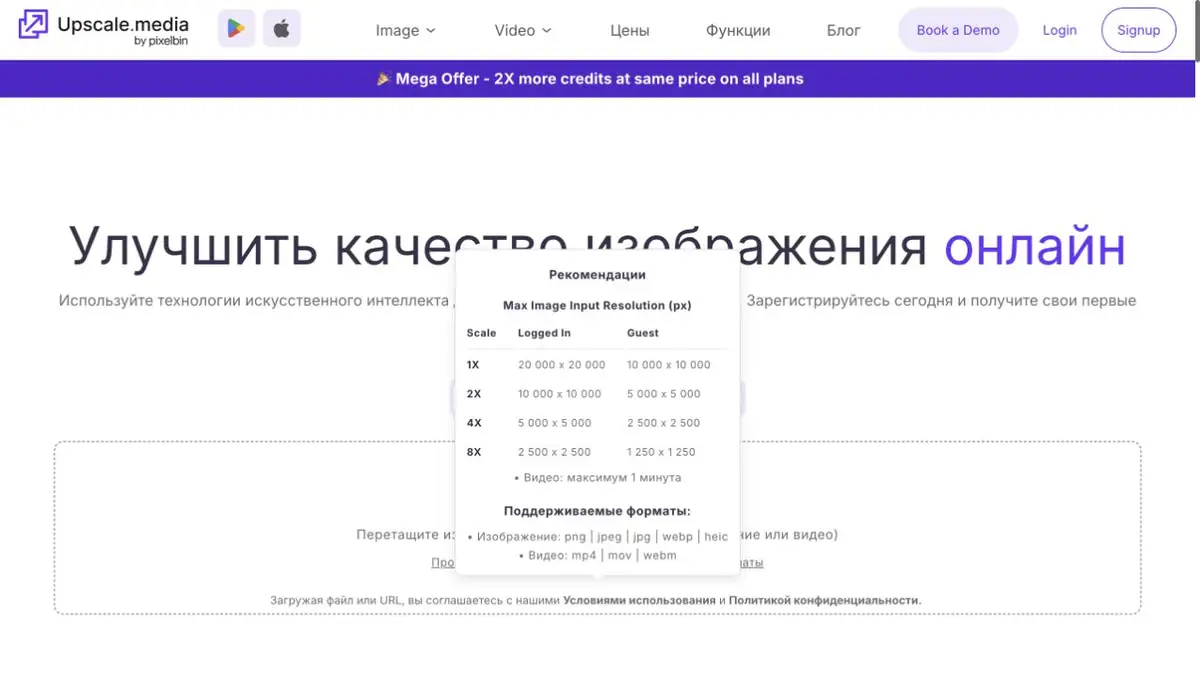
Upscale.media enlarges images and aims to improve their visual clarity. Its official page lists input limits, supported formats and additional tools. The basic workflow is to upload a file, choose an action and compare the result with the original. Batch tools and an API support repeated tasks.
Enlargement does not necessarily reveal new reliable information about a scene. A neural network may sharpen edges and emphasize texture while also inventing a small character, pattern or facial feature. This matters especially for archive and product images: a convincing appearance alone does not establish accuracy.
Preparation of source
For a learning example, use your own small photo of a ceramic vase. Choose the best available copy rather than a repeatedly forwarded and recompressed file. Start with moderate enlargement. Compare the neck, glaze pattern and object boundaries. Inspect blank areas too, where artificial texture may appear.
View the chosen version at its intended publication size. Sharpness that looks impressive when enlarged may seem harsh on a small card. If an important detail changed, choose gentler processing or return to the original. Save that separately: enlarging an already processed image cannot restore lost details.
Batch processing and terms
For regular work, Upscale.media offers API integration and batch transformations within PixelBin. This is useful for processing similar images under a consistent rule. Test representative inputs, define failure criteria and provide manual review of questionable results before increasing the volume.
The terms distinguish free access, subscriptions and individual credit packs. Full account access may have different limits from a single run. Check the credit cost of the action, maximum input size and API rules. Availability is not guaranteed in every region.
Suitable tasks
- Prepare a small image for publication
- Organize repetitive processing via API
Strengths
- A straightforward upload-and-upscale workflow
- API and batch processing
Limitations
- Improvement can add false details
- Quotas and source volume are limited by conditions
Selection and conditions
- Free access
- Yes
- Trial period
- Not confirmed
- No sign-up required
- Yes
- Russian interface
- Not confirmed
- Local installation
- Not confirmed
- API
- Yes
“Not confirmed” means there is not enough information. The feature may still be available; check the developer’s terms.
- Input formats
- Image
- Result
- Image
Terms
Upscale.media offers limited free access and paid credit plans. Batch actions require an account; check API terms, input limits and operation costs separately.From task to first result
Practical example
- Task
- Prepare a small image for publication
- What to prepare
- The original photo in the maximum available quality, without recompression.
Task brief or prompt
Task brief: reduce noise and improve the photo’s clarity while preserving natural texture. Compare the original and processed image at the same scale; do not use reconstructed details as evidence of a fact.
Expected result
A photo that is more suitable for a layout; reconstructed details remain the algorithm’s interpretation.
How to check the result
- Compare the texture of skin and fabric, and the appearance of small lettering.
- Check for halos and invented details.
An editorial teaching example of a task brief, not the result of hands-on testing of the service. Check that the required mode is available, that you have rights to the source material and that the intended use of the result is permitted.
Check details
Official sources
This description is based on the developer’s material. Features, prices and availability may change; check the primary source before use.