Apple's image editor. Its machine learning tools can enlarge photos and adjust selected image properties.
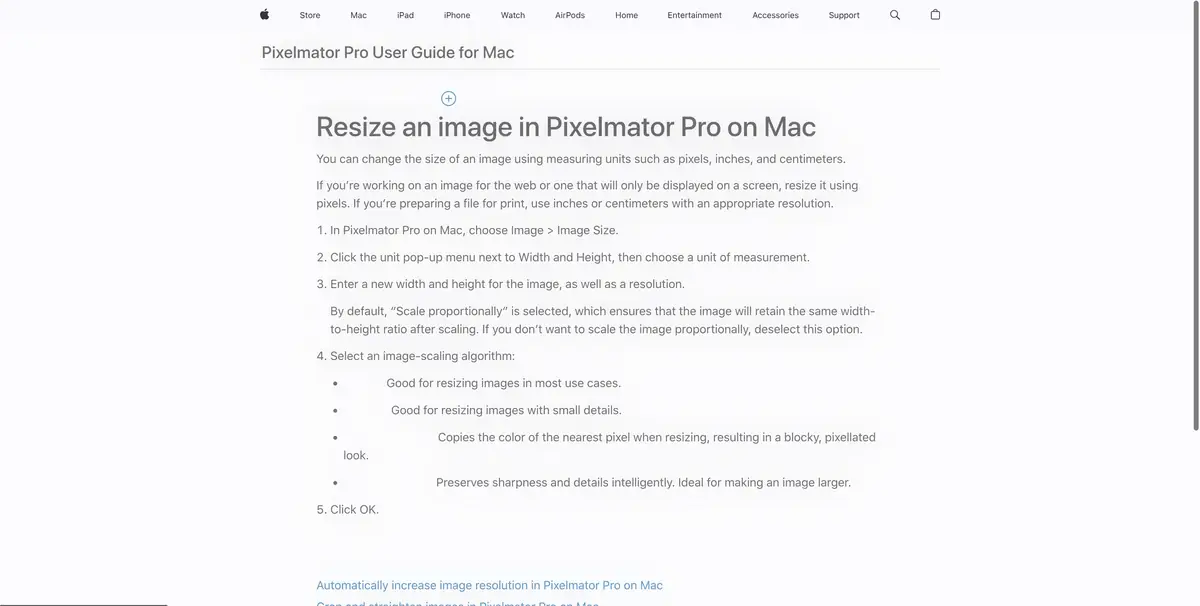
Image size in the finished layout
ML Super Resolution in Pixelmator Pro helps to enlarge the image when the source has few pixels. The processing builds a larger version on the observed details. Before starting, determine what area the image will occupy in the layout. For a small insert of the usual size change may be enough. If an important facture is already lost during compression, the comparison after magnification will show where the algorithm assumption appeared.
An old photo for a display
Take a copy of your own archival photo with a sign and a brick wall. First, save the usual increase to the desired size, then process the second copy through ML Super Resolution. Open both versions at the same scale. Look at the seams of the brick, the letters of the sign and the face in the distant view. A clear-looking symbol may differ from what was in the original image.
To publish with a historical signature, leave the source next to you. If the inscription needs to be read accurately, check it for other materials instead of relying on the restored picture.
Final review
Check the photo at the size that the reader will see it. A slight roughness of the contour can be seen when increasing and disappearing in the finished layout. Save two versions of the file if the size is still being discussed. Before installing, check the supported system and device, as Apple’s instructions and availability of features may vary between versions of the app.
Suitable tasks
- Zoom out a small snapshot for the layout
- Compare processed photo with original
Strengths
- Machine learning-based augmentation tool
- Access to regular editing after processing
Limitations
- Small words can change.
- The visibility of the artifacts depends on the size of the output
Selection and conditions
- Free access
- Not confirmed
- Trial period
- Not confirmed
- No sign-up required
- Not confirmed
- Russian interface
- Not confirmed
- Local installation
- Not confirmed
- API
- Not confirmed
“Not confirmed” means there is not enough information. The feature may still be available; check the developer’s terms.
- Input formats
- Image
- Result
- Image
Terms
The app is available for compatible Apple devices. The method of installation and access conditions check for your platform.From task to first result
Practical example
- Task
- Zoom out a small snapshot for the layout
- What to prepare
- The original photo in the maximum available quality, without recompression.
Task brief or prompt
Task brief: reduce noise and improve the photo’s clarity while preserving natural texture. Compare the original and processed image at the same scale; do not use reconstructed details as evidence of a fact.
Expected result
A photo that is more suitable for a layout; reconstructed details remain the algorithm’s interpretation.
How to check the result
- Compare the texture of skin and fabric, and the appearance of small lettering.
- Check for halos and invented details.
An editorial teaching example of a task brief, not the result of hands-on testing of the service. Check that the required mode is available, that you have rights to the source material and that the intended use of the result is permitted.
Check details
Official sources
This description is based on the developer’s material. Features, prices and availability may change; check the primary source before use.