NVIDIA AI for Media brings together audio and video enhancement SDKs and microservices.
Where NVIDIA’s media tools are used
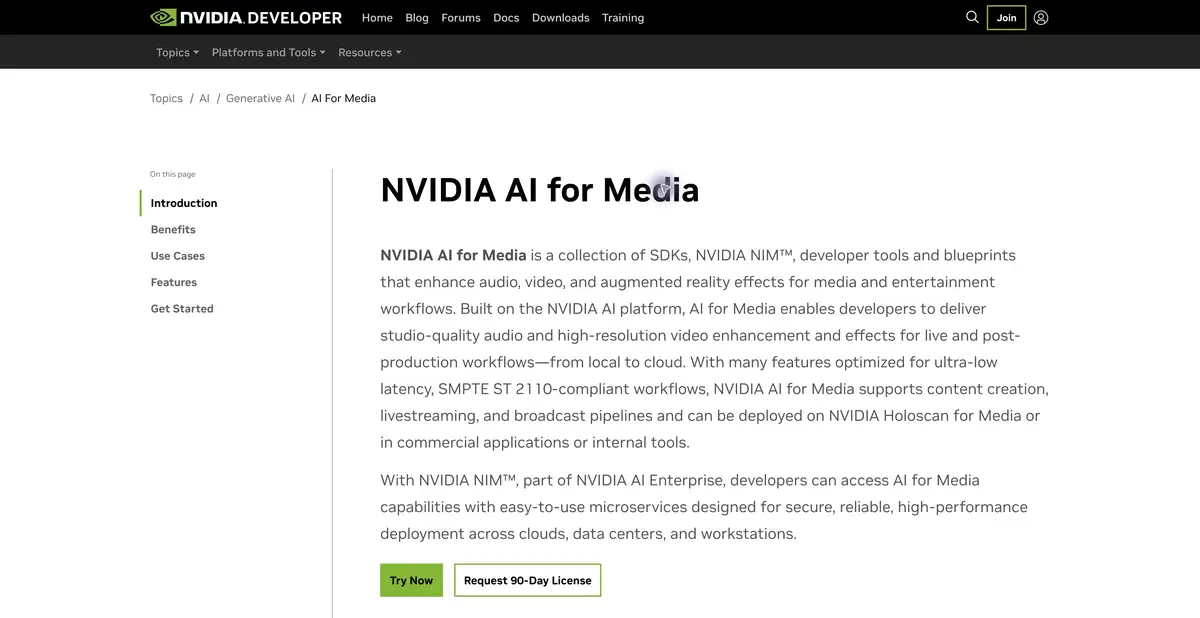
The former Maxine page now leads to NVIDIA AI for Media. The suite includes SDKs, NIM microservices and audio and video processing tools. Documented areas include background noise removal, voice enhancement, resolution enhancement and relighting. Different components provide these functions, with separate requirements and access terms.
The product targets developers and professional media workflows. It can be integrated into an application, broadcast system or your own processing pipeline. This requires configuration, compatible infrastructure and an understanding of the signal path. A browser demonstration does not mean the same mode is free on any home computer.
A small quality check matters more than a polished demo
For a practice project, use your own speech recording with steady background noise. Set up one suitable component and compare processed audio with the original at equal volume. Listen to quiet word endings, short consonants and pauses. If words disappear along with noise, a cleaner background alone does not make the result successful.
Check video separately. When relighting, inspect skin, hair and moving edges. For resolution enhancement, examine small lettering and clothing detail: extra sharpness does not prove that reconstructed texture is accurate. Keep source material and settings so that you can connect a change to a particular operation.
Processing within the full signal path
For live broadcasting, assess the entire path of capture, transfer, computation and output, rather than one enhanced file. Small delays accumulate when several stages run in sequence. Test the actual connection setup you intend to use.
Start with one feature and add others in turn. This makes it possible to associate changes in timbre, picture or response time with a specific component. A result suitable for processing a finished recording may be unsuitable for a live two way conversation.
Distribution and integration
Official documentation describes different SDK and NIM options. Check supported GPUs, runtime, input formats and latency requirements for the component you select. Local deployment means using your own infrastructure, with equipment and maintenance costs. Some functions may require a request or special access.
Commercial distribution, a trial license and a demonstration are different forms of access. Do not apply one component’s terms to the whole suite. Before going live, provide a bypass without enhancement so that a model failure or resource shortage does not interrupt the core audio and video.
Suitable tasks
- Integrate noise removal into a media workflow
- Add video enhancements to your app
- Compare individual media processing operations
Strengths
- Specialized NVIDIA SDKs and microservices
- Documentation for professional processes
Limitations
- Requires compatible GPU and setup
- Components have different access conditions
Selection and conditions
- Free access
- Not confirmed
- Trial period
- Not confirmed
- No sign-up required
- Not confirmed
- Russian interface
- Not confirmed
- Local installation
- Yes
- API
- Yes
“Not confirmed” means there is not enough information. The feature may still be available; check the developer’s terms.
- Input formats
- Video, Audio
- Result
- Video, Audio
Terms
Local deployment needs compatible hardware and a component license. SDKs, NIM, demos and features available on request have different terms.From task to first result
Practical example
- Task
- Integrate noise removal into a media workflow
- What to prepare
- An original speech recording with background noise; keep a separate, unchanged copy.
Task brief or prompt
Task brief: reduce noise in a speech recording while preserving natural word endings, breathing and vocal timbre. Compare the processed audio with the original at the same volume.
Expected result
A cleaned-up version of the recording; judge it by listening, not just by looking at the waveform.
How to check the result
- Listen to quiet word endings and pauses.
- Listen for metallic artifacts, cut-offs and changes in vocal timbre.
An editorial teaching example of a task brief, not the result of hands-on testing of the service. Check that the required mode is available, that you have rights to the source material and that the intended use of the result is permitted.
Check details
Official sources
This description is based on the developer’s material. Features, prices and availability may change; check the primary source before use.