

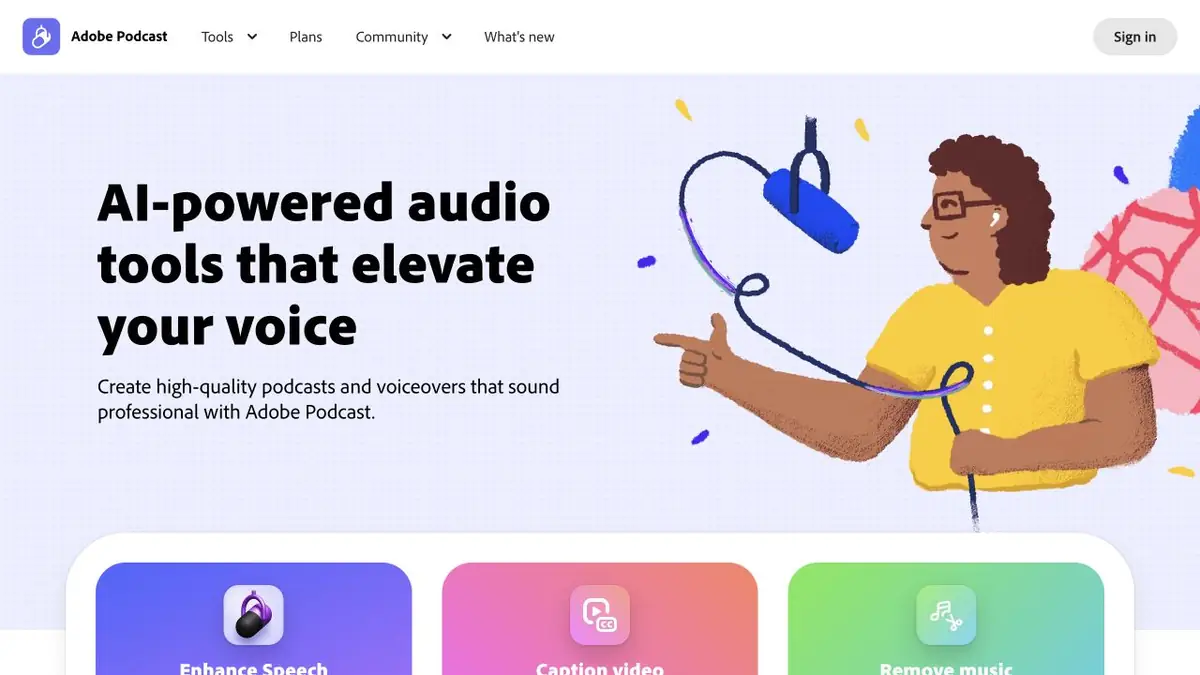
Adobe web tools for voice recordings. Enhance Speech reduces interfering noise, and Studio helps to record and edit spoken material.
When Enhance Speech is Useful
Adobe Podcast helps make recorded speech clearer. Enhance Speech addresses problems in an existing voice recording, such as distracting noise and poor room acoustics. It is a post-processing tool, not a promise to recover everything the microphone failed to record.
If the source speech is overloaded, words blend with music or the speaker is too far away, processing may change the voice’s timbre and individual sounds. Compare it with the original and check the meaning. A cleaner background does not always mean a more natural voice.
Preparing a recording before upload
Keep the original. If possible, test a section with representative speech and background before processing a long file. Do not judge the effect only by a quiet pause: preserving intelligible words and intonation is the main task. For a new recording, Adobe’s Mic Check helps improve conditions beforehand.
Studio: recording and editing
Adobe Podcast Studio runs in the browser and links the recording to its transcript. The guides cover remote conversations, transcript-based editing and preparing material. Transcription support is limited to the official language list; do not assume it works with every language.
When editing an interview, check names, numbers and what each cut does to the meaning. Removing repetition is useful only while it preserves the speaker’s position. Judge background music and the intro together with speech, not only in an attractive preview.
What access is needed
Basic tools have limits, while advanced features require a suitable paid Adobe offering. Allowances, file sizes, batch processing and Studio settings vary. Check the current plan before paying: the offering’s name and related products may change.
Final check
Listen to the complete processed recording in ordinary headphones at a comfortable volume. Check that word endings, breaths and important quiet remarks remain. Save a separate final version for publication so you can return to gentler processing later.
Suitable tasks
- Cleaning up speech audio
- Preparing interviews and podcasts
- Remote recording
- Transcript-based editing
Strengths
- Specialized speech processing
- Browser workflow
- Adobe's official instructions
Limitations
- Cannot guarantee recovery of lost words
- Can change the natural timbre
- Studio languages and usage allowances are limited
Check details
Official sources
This description is based on the developer’s material. Features, prices and availability may change; check the primary source before use.


