The model receives an image and a task indication. The OCR mode with the fields returns the found text along with coordinates that can be used for verification.
Where to read the text and where to look for the area
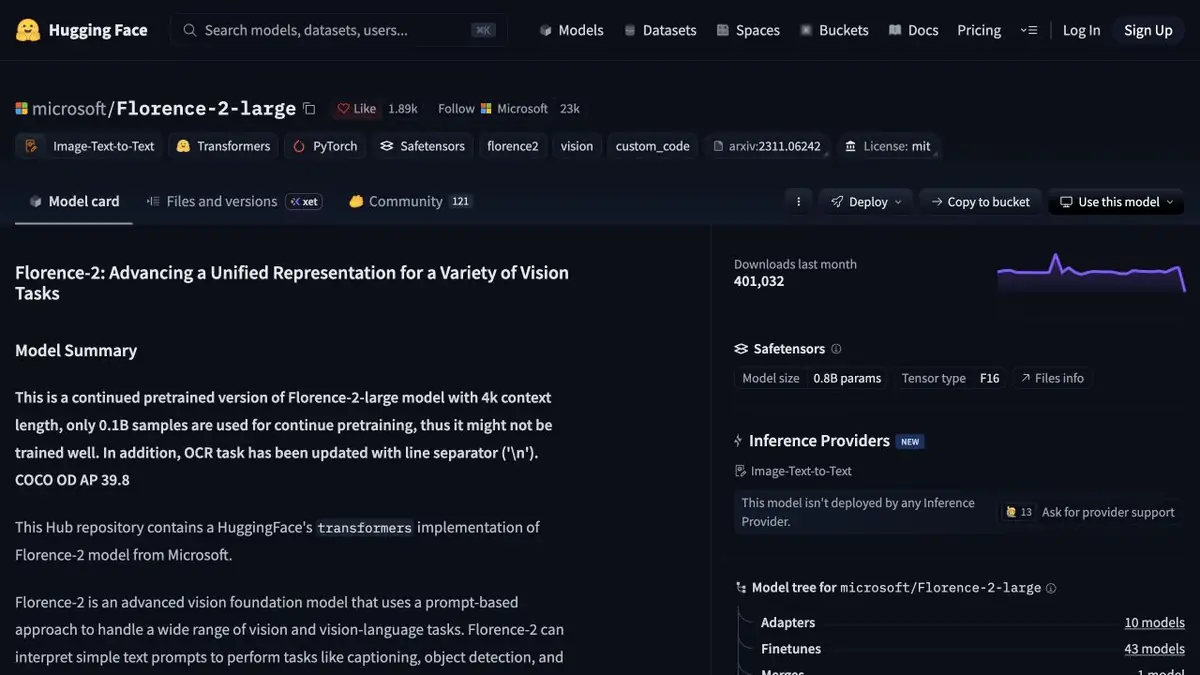
A small label and a prominent name can matter equally on a sample product image. If you extract words alone, you may struggle to find where the model misread a digit. Florence-2 supports text recognition with region coordinates. Save the text and corresponding regions with the original image. An editor can then inspect a disputed area even if the same text occurs twice in the picture.
Take your pictures for comparison.
Prepare two training images of one label. Take the first one off straight, the second one at an angle. Write out in advance the markings and numbers that can not be confused. Compare the results with the original by coordinates and see if the reading is from top to bottom. To check the scope, use the dimensions of the original image and make sure that the selected zoom method is taken into account when displaying the frame.
Passes must also be saved.
If the inscription has disappeared from the answer, do not turn an empty field into a plausible guess. For the training sample, mark such places as requiring verification. Separately try the image description mode and recognition mode. These modes have different goals, so a beautiful label description says nothing about the accuracy of the numbers. Before starting, check the weight option conditions and the way the model is loaded if the environment requires permission of external code. To recheck, save the images, the original dimensions and the selected task indication.
Suitable tasks
- Extract signatures and show their location
- Verify recognition of small text and numbers
Strengths
- One model supports multiple visual tasks
- Microsoft cards show the preparation of the input and analysis of the answer
Limitations
- Small or rotated text needs manual verification
- Coordinates must refer to the correct image size
Selection and conditions
- Free access
- Yes
- Trial period
- Not confirmed
- No sign-up required
- Not confirmed
- Russian interface
- Not confirmed
- Local installation
- Yes
- API
- Not confirmed
“Not confirmed” means there is not enough information. The feature may still be available; check the developer’s terms.
- Input formats
- Document, Image
- Result
- Data, Text
Terms
Microsoft publishes the weights under the terms in the model card. Local execution requires a suitable environment and compute resources. Small or rotated text needs manual verification.From task to first result
Practical example
- Task
- Extract signatures and show their location
- What to prepare
- His training scans with numbers, tilt and small signatures.
Task brief or prompt
Identify the lines and keep the coordinates together with the text. Mark the fields that need to be checked with the image manually.
Expected result
Text and list of disputed rows with references to source areas.
How to check the result
- Check the numbers, order of lines and omissions.
- Repeat on the frame with a different lighting.
An editorial teaching example of a task brief, not the result of hands-on testing of the service. Check that the required mode is available, that you have rights to the source material and that the intended use of the result is permitted.
Check details
Official sources
This description is based on the developer’s material. Features, prices and availability may change; check the primary source before use.