The Mentimeter assistant creates and changes the Menti from the description or attached files, and the presenter finalizes slides in the editor.
From the question leading to the scenario of the session
Start with a decision that the audience has to make. For an internal session about introducing new employees, formulate the goal as choosing one of several help options in the first week. Give the assistant your own theses and ask to alternate short explanations with surveys. Mentimeter can also take attached files as a basis. If there is a ready-made presentation, use it as a source for interactive inserts.
Checking slides from the participant
In the training example, first ask which of the three difficulties occurs most often. Next, add an open question where participants can describe the situation in their own words. In the voting options, leave the opportunity to answer that none of these problems are familiar to them. Otherwise, the leader will get a choice even from those who have no problems.
Open the result on a separate device, pass the survey to the end and check on which slide the presenter can see the answers. Make sure that the signatures on the phone are not cropped and the viewer understands how to send their option.
Editing Conditions
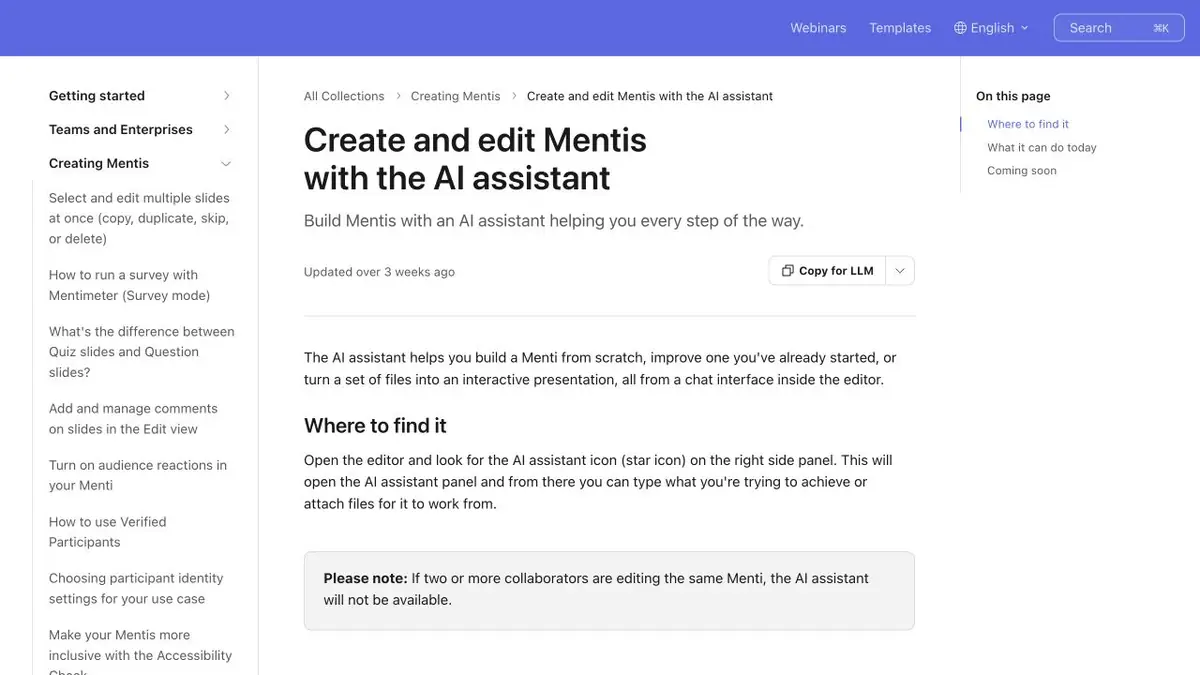
All slides remain in the usual editor. There you can change the order of questions, remove repetitive slides and specify the display parameters. The Mentimeter help separately indicates the assistant's limitation while being edited by multiple participants. In such a situation, prepare the generation in a separate session, and then return to the general work. Agree with the co-host who changes slides during the meeting.
Suitable tasks
- Prepare a survey for the seminar.
- Add interactive questions to ready slides.
Strengths
- The assistant creates and edits slides in the editor.
- The original presentation can be used for an interactive script.
Limitations
- The assistant is not available when editing by multiple participants at the same time.
- Questions and answers should be deleted.
Selection and conditions
- Free access
- Not confirmed
- Trial period
- Not confirmed
- No sign-up required
- Not confirmed
- Russian interface
- Not confirmed
- Local installation
- Not confirmed
- API
- Not confirmed
“Not confirmed” means there is not enough information. The feature may still be available; check the developer’s terms.
- Input formats
- Text
- Result
- Presentation
Terms
Conduct a trial session from the participant’s device.From task to first result
Practical example
- Task
- Prepare a survey for the seminar.
- What to prepare
- Your own project notes: goal, audience, problem, solution and next step.
Task brief or prompt
Outline a short project presentation. For each slide, provide one main point, a supporting fact from my notes and a suitable type of visual. Do not invent figures or customers.
Expected result
A draft presentation with one main point per slide and no invented results.
How to check the result
- Check every figure against the original notes.
- Check the readability of the text and the order of the arguments.
An editorial teaching example of a task brief, not the result of hands-on testing of the service. Check that the required mode is available, that you have rights to the source material and that the intended use of the result is permitted.
Check details
Official sources
This description is based on the developer’s material. Features, prices and availability may change; check the primary source before use.