

Beautiful.ai combines AI content preparation with Smart Slides — layouts that adapt as you edit. It helps format presentations and maintain a consistent visual structure across team materials.
Agree on the narrative before designing slides
Presentations often require edits not because the color is ugly, but because the arguments go in the wrong order. In Beautiful.ai, the workflow begins with an idea, a source context and a structure. The plan can be refined before the finished design is generated, so as not to waste time polishing unnecessary slides.
This is a presentation creation platform, not a separate general-purpose language model. Its strength is combining content, controlled layouts and further editing. The author must still prepare verified facts and define the presentation's purpose.
How Smart Slides help
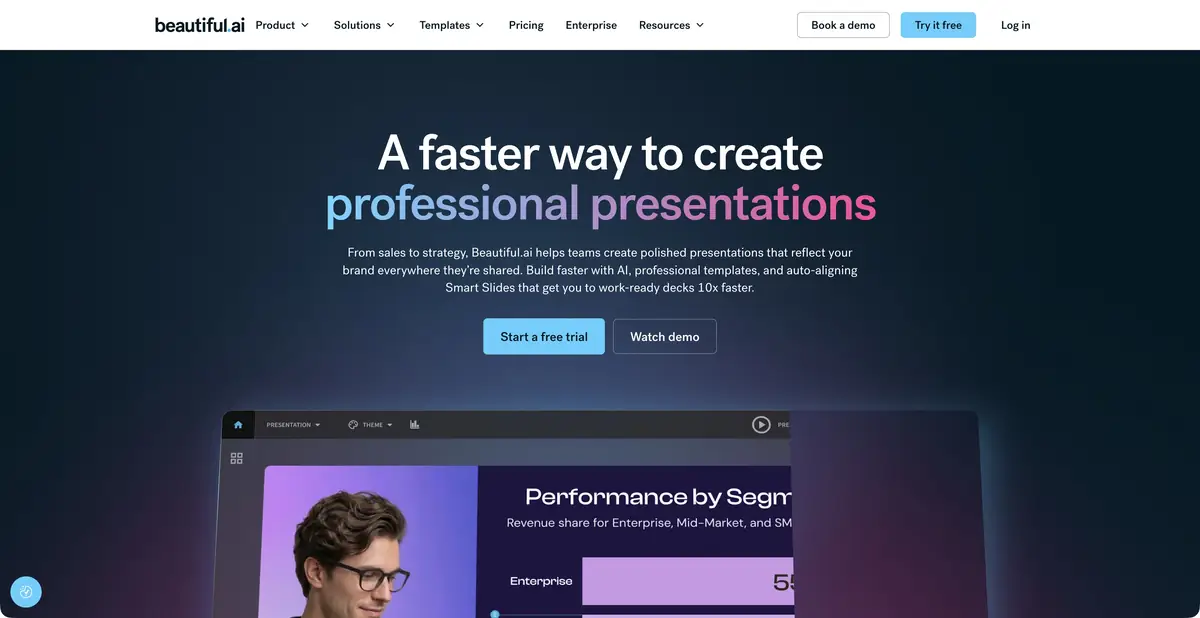
Smart Slides automatically adjust element placement, alignment and size as you edit. The library includes layouts for comparisons, charts, timelines and other ways of presenting information. You can change a slide's structure without manually restoring every spacing detail.
This approach is especially useful for recurring reports where care and consistency matter. Automatic layouts have limits, though. If you need a freely composed original design, check the available manual editing options rather than expecting every unusual design to fit a template equally well.
Example: report on a small pilot project
Prepare the source data: the pilot project's goal, conditions, actual results and next step. Ask for an outline first, remove repeated points, then move on to slides. For each chart, specify the source table and clear units of measurement.
Review the presentation from the recipient's perspective: are headings readable, does an illustration hide an important limitation, and is the conclusion clear without spoken commentary? Do not invent percentages for an impressive chart.
Brand, collaboration and file transfer
Themes and team settings help to apply a single design. There are shared libraries, brand control and presentation distribution functions; their access depends on the plan. Importing and exporting PowerPoint, as well as PDF, allows you to continue working outside the web editor.
After exporting, open the file in the target application. Check wrapping in long headings, charts, labels and whether the necessary elements are editable. The browser view does not replace checking the actual file on the screen used for the presentation.
Trial access and restrictions
Core access requires a subscription. The official page describes a trial with billing and automatic-charge terms; it is not a permanent free plan. Check education and team offerings separately rather than assuming they are available to everyone.
AI assistance can make mistakes in facts, sources and reasoning. Images also need to be checked for relevance and compliance with usage terms. The service helps organize and format material, but does not verify the report's accuracy on the author's behalf.
Suitable tasks
- Prepare a presentation from structure to designed slides
- Build a repeatable report with charts and comparisons
- Maintain consistent design across team materials
- Transfer presentation to PowerPoint or PDF
Strengths
- Smart Slides adapt the layout when text changes
- Work with the structure before the final design
- Themes and team branding tools
- Import and export of popular presentation formats
Limitations
- Automatic layouts constrain composition
- Facts and charts must be checked against source data
- Export requires viewing in the target program
- Core access requires a subscription; the trial has billing terms
Selection and conditions
- Free access
- Not confirmed
- Trial period
- Yes
- No sign-up required
- Not confirmed
- Russian interface
- Not confirmed
- Local installation
- Not confirmed
- API
- Not confirmed
“Not confirmed” means there is not enough information. The feature may still be available; check the developer’s terms.
- Input formats
- Text, Document
- Result
- Presentation, Document
Terms
Core access requires a subscription; the trial has automatic-charge terms. Branding, team features and export depend on the plan.From task to first result
Practical example
- Task
- Prepare a presentation from structure to designed slides
- What to prepare
- Your own project notes: goal, audience, problem, solution and next step.
Task brief or prompt
Outline a short project presentation. For each slide, provide one main point, a supporting fact from my notes and a suitable type of visual. Do not invent figures or customers.
Expected result
A draft presentation with one main point per slide and no invented results.
How to check the result
- Check every figure against the original notes.
- Check the readability of the text and the order of the arguments.
An editorial teaching example of a task brief, not the result of hands-on testing of the service. Check that the required mode is available, that you have rights to the source material and that the intended use of the result is permitted.
Check details
Official sources
This description is based on the developer’s material. Features, prices and availability may change; check the primary source before use.

