Answers questions about uploaded PDFs and links to passages in the documents.
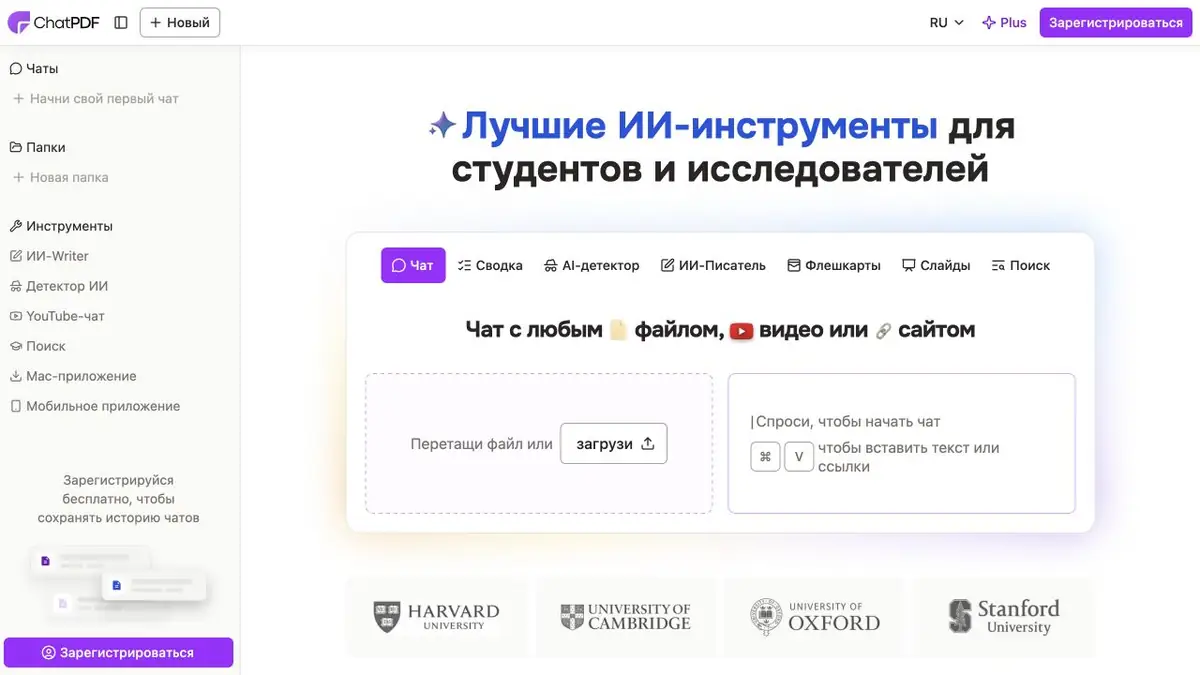
Ask a question to the document
ChatPDF starts a conversation about an uploaded document. Citations in its answers take you to the relevant PDF passage. For a first pass through a manual, find the section on resetting settings, open the cited page and check which models it covers.
The service allows you to organize files into folders and discuss several PDF in one conversation. To ensure that the conclusions are not mixed, specify the names of the files in the question.
Compare the two versions of the instructions
In this exercise, compare an old and a new set of instructions for returning school equipment. Upload both and ask which deadline changed and when the exceptions apply. Ask for a source for each condition. Open the citations and read the surrounding paragraphs. A restriction may be on the next page.
If there are many tables or scanned pages in the PDF, first check that the service extracts the right numbers and signatures. It is more convenient to start with one well-known example and compare the answer with the original. Linking to a page makes it easier to reconcile, although the text of the answer can combine the correct data with the wrong conclusion.
How to get access
The site has a free mode and a Plus subscription. You need an account to save your history. The developer documents a separate API for uploading PDFs and querying a selected source. When choosing between web chat and the API, check processing limits and whether you can share your files with the service.
Suitable tasks
- Compare conditions in two PDF
- Find a section of the instruction
- Check the answer for links to pages
Strengths
- Go to the source of the answer
- Discussion of multiple files in one conversation
Limitations
- Citations and conclusions require separate verification
- Scans and tables should be checked separately
Selection and conditions
- Free access
- Yes
- Trial period
- Not confirmed
- No sign-up required
- Not confirmed
- Russian interface
- Not confirmed
- Local installation
- Not confirmed
- API
- Yes
“Not confirmed” means there is not enough information. The feature may still be available; check the developer’s terms.
- Input formats
- Text, Document
- Result
- Text
Terms
Chat on the site and API have their limitations. Check the conclusions from the PDF source pages.From task to first result
Practical example
- Task
- Compare conditions in two PDF
- What to prepare
- Two of your own documents describing delivery deadlines, with personal data removed in advance.
Task brief or prompt
Compare the delivery terms in the two attached texts. List differences in deadlines, exceptions and passages where information is insufficient. For each conclusion, provide a quotation and the source document’s name. Do not fill in missing information.
Expected result
A table of discrepancies with quotations that can be checked against the source documents.
How to check the result
- Find each quotation in the original document.
- Check the exceptions and do not treat the answer as a legal opinion.
An editorial teaching example of a task brief, not the result of hands-on testing of the service. Check that the required mode is available, that you have rights to the source material and that the intended use of the result is permitted.
Check details
Official sources
This description is based on the developer’s material. Features, prices and availability may change; check the primary source before use.