A video editor for large productions. Supported editions can search dialogue in footage and align shots with the script.
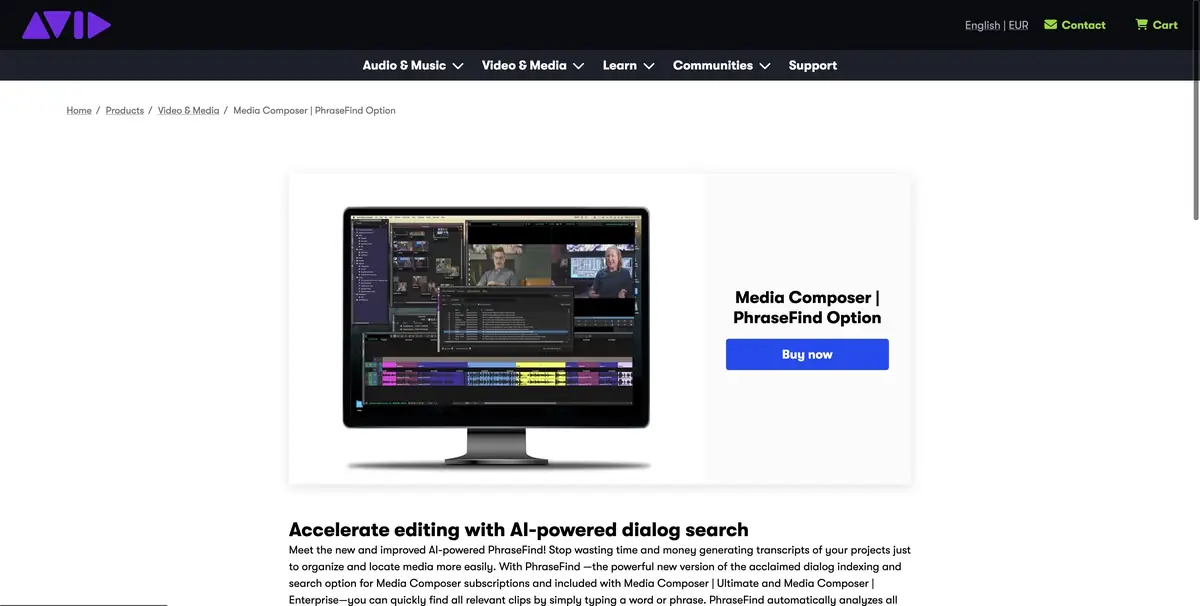
Search for spoken words
When a project contains dozens of takes, file numbers rarely tell you where a line was spoken. PhraseFind AI indexes speech in the source footage so an editor can search for words and open matching clips. ScriptSync AI uses dialogue analysis to match footage to script text. These functions are especially useful when an alternate take is in another batch of footage.
Two takes of one line
Let's present a training video about the exhibition. In some takes, the hero calls the hall, in others indicates the entrance to the courtyard. Find both options by keywords and listen to neighboring phrases. If a search misses one title, try a shorter snippet of spoken text. Then check the clips found in the project and compare the pauses, the position of the hero and compliance with the previous plan.
Speech recognition helps you navigate, but the actual line may differ from the script. Check the recording before making the cut.
Indexing and workstation resources
Indexing uses workstation resources in a large project. Let it finish on a test bin and check how search behaves in your edition. Avid lists the editions that include PhraseFind AI. If several editors share the work, check ScriptSync AI and the process for moving project data to another workstation separately. Record which take you chose and why in the shared project.
Suitable tasks
- Find a line across several days of footage
- Bind duplicates to the script
Strengths
- Search by indexed speech
- Relationship of dialogue to points in source material
Limitations
- Indexing takes time and resources
- Names and quiet lines need to be checked by sound
Selection and conditions
- Free access
- Not confirmed
- Trial period
- Not confirmed
- No sign-up required
- Not confirmed
- Russian interface
- Not confirmed
- Local installation
- Not confirmed
- API
- Not confirmed
“Not confirmed” means there is not enough information. The feature may still be available; check the developer’s terms.
- Input formats
- Video, Audio, Text
- Result
- Video, Text
Terms
Install Media Composer on a compatible system. Before working with decryption, check the availability of PhraseFind AI and ScriptSync AI in its edition.From task to first result
Practical example
- Task
- Find a line across several days of footage
- What to prepare
- Your own long video lecture with several self-contained answers or explanations.
Task brief or prompt
Suggest short clips, each expressing a complete thought: a question, explanation and clear conclusion. Preserve negations and qualifications. Prepare suitable framing and check the automatically generated subtitles.
Expected result
Several draft clips from the source recording, checked by an editor before publication.
How to check the result
- The beginning of each clip is understandable to a person who has not seen the full recording.
- The edit preserves the statement's meaning and important conditions.
- Subtitles, names, terms and framing are manually checked.
An editorial teaching example of a task brief, not the result of hands-on testing of the service. Check that the required mode is available, that you have rights to the source material and that the intended use of the result is permitted.
Check details
Official sources
- Avid Media Composer Product and Editions
- Search by speech with PhraseFind AI
- Installation Guide and ScriptSync AI
This description is based on the developer’s material. Features, prices and availability may change; check the primary source before use.