
A practical guide
Nano Banana: replacing a product photo's background while preserving the product
A few edits can make a background more expressive. It is harder to spot a changed mug handle or glaze colour along the way. We examine product-photo background replacement while checking the item itself.
Decide which parts of the photograph may be changed
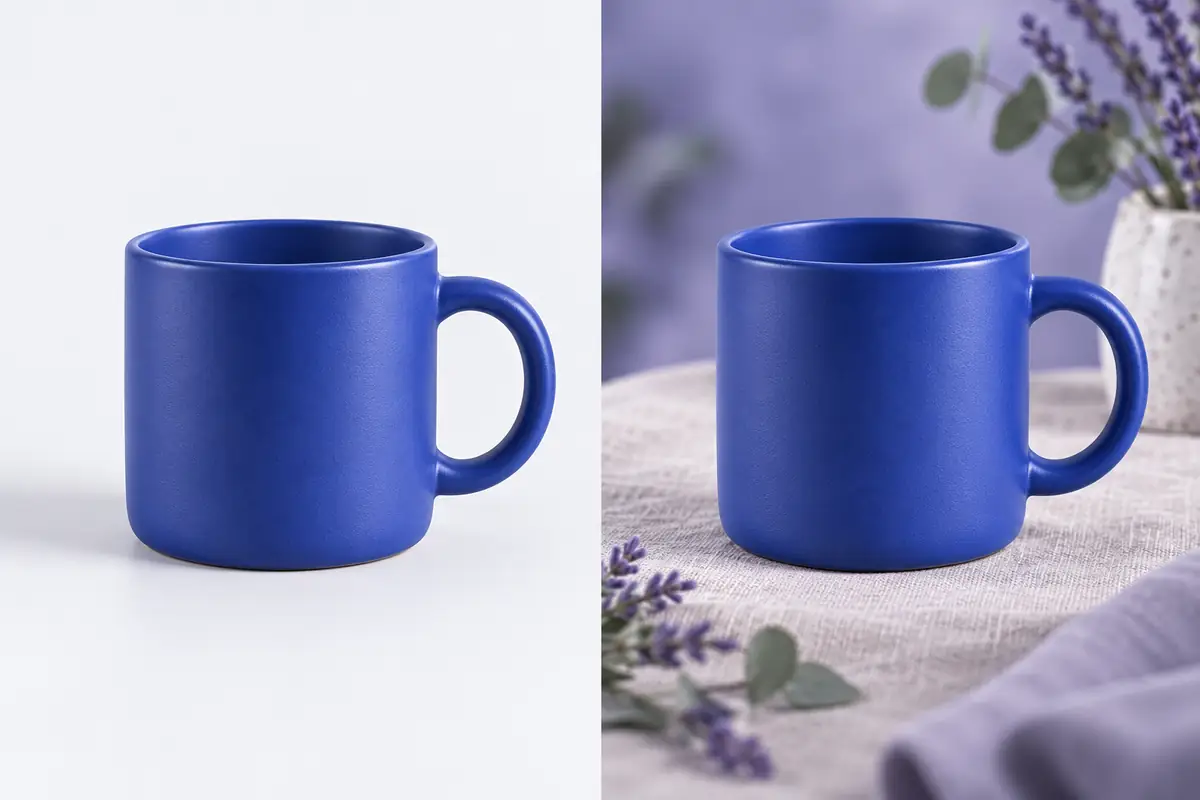
The blue ceramic mug has been photographed in good light, but a grey table spoils the product image. You want pale linen beneath it, a softer background and an accurate impression for the buyer. That defines the task’s boundary: surroundings can be invented, but product properties must be checked.
Google describes image-based editing and local changes requested in ordinary language for Nano Banana. Its documentation includes semantic masking: identify the area to change and ask to preserve everything else. This is a way of framing the task; it does not guarantee that every pixel will remain unchanged.
Before uploading, list the features that make an unwanted change easy to spot. For our mug, these are the round upper rim, wall thickness, oval handle, matte blue surface and proportions of the base. For another product, the list might include a seam, a fastener, wood texture or lettering on the packaging.
Choose an original image that clearly shows the product
Start with the clearest photograph: the whole object is visible, its outline stands apart from the background and its colour looks plausible. A blurred edge or overexposed handle gives the model room to guess. A second angle helps you check shape, even if the prompt uses only one main image.
Keep the original separately.
Compare the original image with an output at sufficient resolution. A screenshot of a small preview makes it easy to miss a chip, lost lettering or an odd transition at the base. Label working files so the approved version and its original are clear.
Choose one background for the particular task. A neutral product image needs only a simple surface and space around the mug. A breakfast lifestyle scene needs a separate check: the model may add a saucer or spoon that a buyer could mistake for part of the set.
Describe the background replacement in one complete prompt
Specify the original object, new surroundings and what must stay unchanged. Do not combine that edit with turning the mug, making it look more expensive and changing the whole scene’s lighting. Simultaneous transformations make errors harder to trace.
Example prompt: “Use the uploaded photograph of the blue ceramic mug. Replace only the background and table surface: pale linen below and a softly blurred lavender background behind. Preserve the original angle, mug size within the image, rim and handle shape, matte blue colour and visible surface features. Do not add objects. Add a soft contact shadow below the base that matches the original lighting.” This is a starting prompt; its result still needs checking.
If the original light comes from the left, describe surroundings with the same lighting direction. Requesting dramatic backlighting makes the task harder: new highlights may make matte ceramic appear glossy.
Check the edge, handle, color and contact with the surface
Place both versions side by side at the same scale. Check the silhouette first. The mug’s rim must retain its angle and thickness, the handle opening its shape and the base its width. A beautiful background cannot compensate for a different mug body.
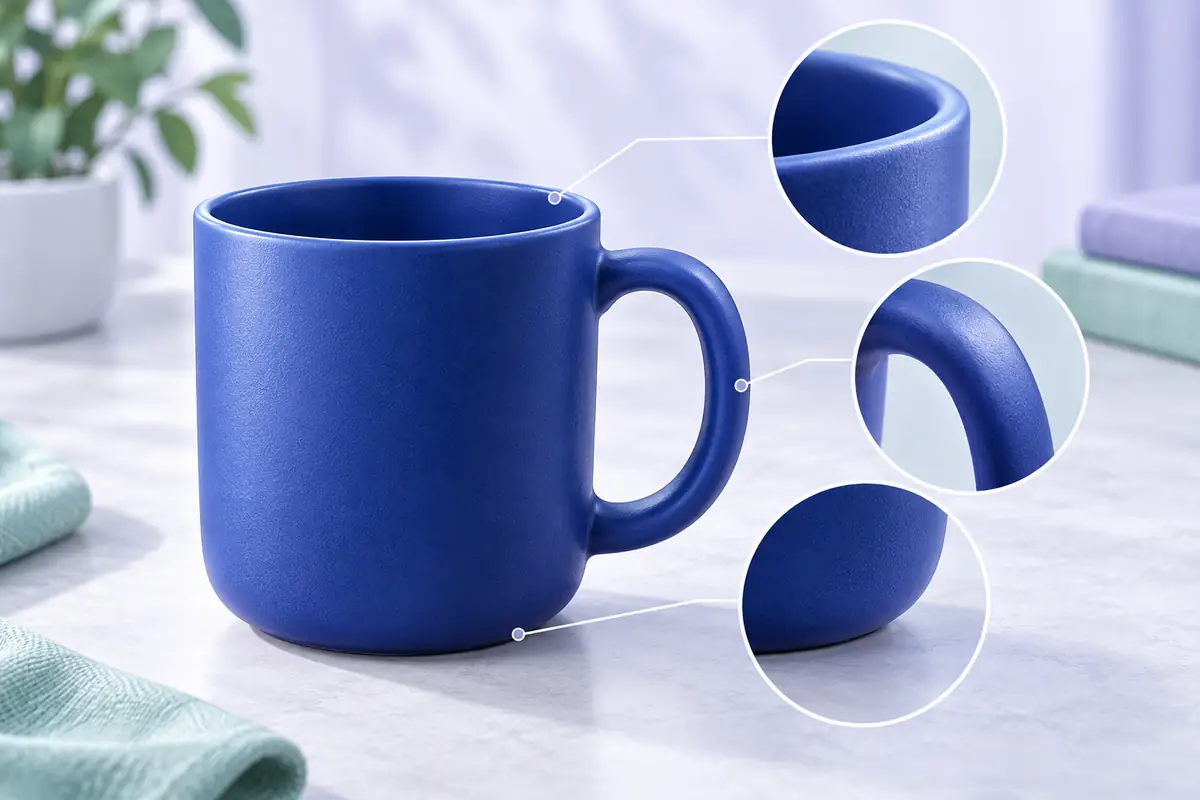
Then zoom in on the edges. Light halos and blurred patches can appear where the object meets the new background. The handle’s inner outline may disappear, or a gap below the base may make the mug appear to float. A contact shadow should show where the object meets the surface.
Assess colour both beside the original and in isolation. Lavender surroundings can shift the perceived blue even without obvious recolouring. If exact colour matters to buyers, include the original neutral photograph in the listing too.
Check markings character by character. On packaging, compare the logo, volume, SKU and small print. Restore unreadable lettering from the original in a conventional editor rather than accepting a plausible imitation as the correct label.
Make local edits and return to the original regularly
If the background works but the shadow is too dark, change only the shadow in the next prompt. For example: “Make the contact shadow below the base lighter and softer. Preserve the mug, fabric and the rest of the scene.” Compare the product again afterwards: a written constraint does not replace inspection.
If shape changes noticeably, return to the original photograph. Repeatedly fixing an already distorted handle may make it drift further. For complex engravings, transparent parts or critical geometry, retaining a cut-out original object on a separate layer and placing the generated background beneath it is more reliable. That method still requires checking cut-out edges and shadows.
Before publishing, check what the image promises to the buyer
View a finished frame the size of a real card on your phone. Is the product immediately recognizable? Does the fabric hide the base? Does the background distract from the shape? Separately open the large version and check the small details: these two views solve different problems.
Remove invented accessories, altered included items and decorations absent from the real product. Check the marketplace’s main-image and processing requirements. An artistic image can support an additional scene, while technical product properties must remain verifiable against real photographs.
Keep the original, approved result and prompt together. Start from that pair when you need another background. This makes changes easier to understand and preserves consistent product presentation.
