
A practical guide
Image-to-video in Veo: directing movement while preserving the scene
A plant pot on a windowsill looks convincing in a photograph. If it changes shape in the video, an elegant camera move will not save the shot. Here is how to brief Veo and decide whether to accept or reject the resulting clip.
Start with a frame that can withstand movement
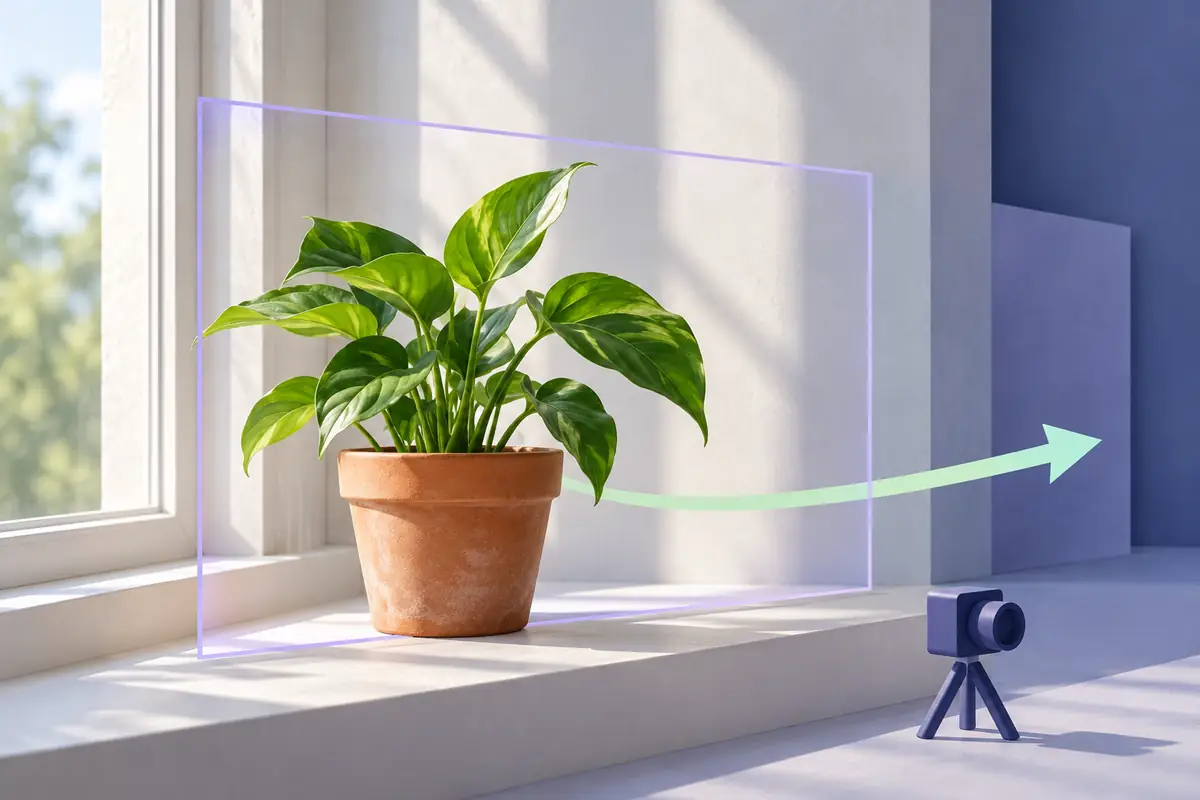
For this tutorial, imagine a photograph of a small terracotta pot with a green plant on a light-coloured windowsill. This is a hypothetical brief, not a report on an actual generation. We want one quiet shot: the camera moves a little to the right while the pot stays in place.
First, inspect the source image at full size. Is the rim of the pot clearly visible? Do thin leaves blend into the background? Is there space on either side? If the subject is already cropped or blurred, it will be difficult to tell whether the model preserved its shape once it moves. Google’s image-to-video recommendations treat the source image as the basis for the details, lighting and style of the resulting video.
Even a small camera shift reveals parts of the scene that the photograph does not show. Those areas will have to be generated.
For your first version, avoid a wide orbit around the plant. Start with a short sideways camera move and assess how the model handles perspective.
Decide exactly what should move
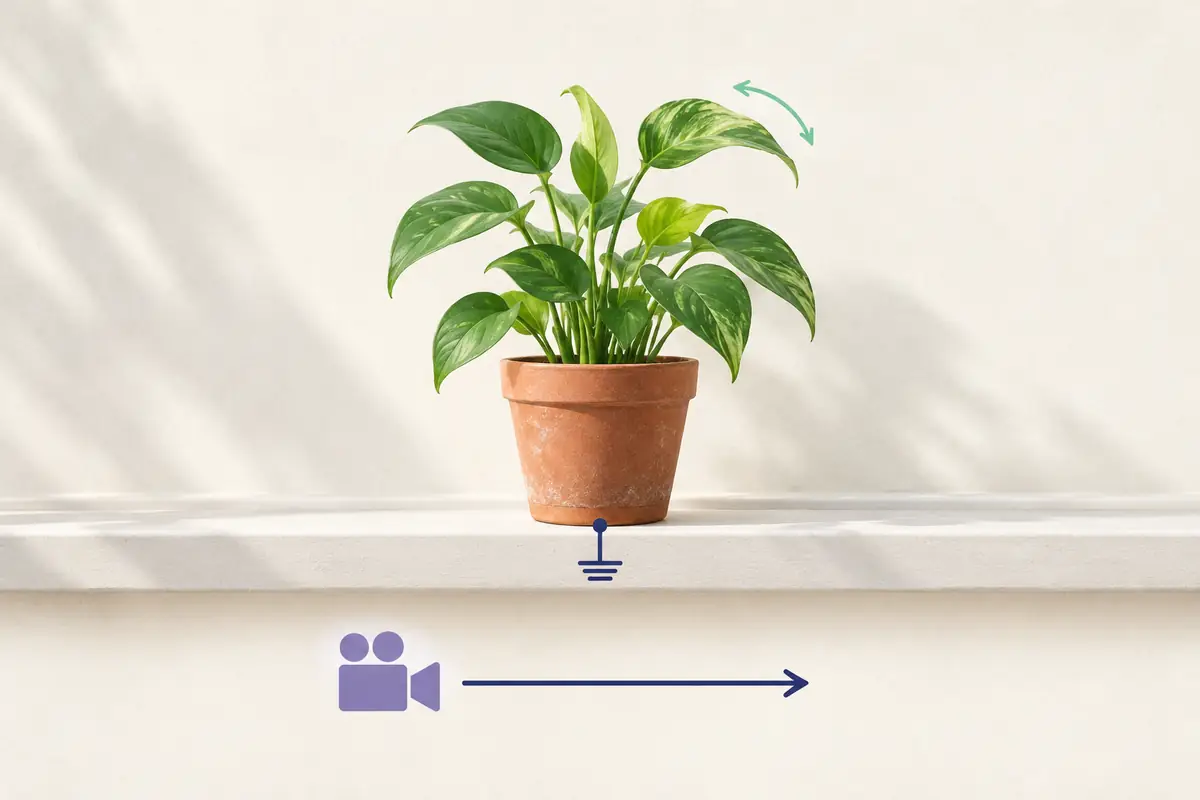
This scene offers three separate possibilities. The camera can move. The pot itself can turn. The leaves can sway gently. Simply writing “animate the plant” leaves it unclear which of these results you want.
In the first attempt, keep only the camera movement. This makes it easier to spot whether the model substitutes rotation of the subject. You can then ask for gentle leaf movement separately. This is an editorial method for breaking down the task; it does not guarantee that Veo will follow every instruction. A sideways camera move and a camera pivoting on the spot produce different perspectives. Google’s official guide calls physical movement to the right truck right.
Do not combine the sideways move with moving closer, orbiting or an abrupt change of shot.
A prompt for a small move to the right
For image-to-video, Google recommends focusing on motion: the photograph already establishes the subject, surroundings and visual style. There is no need to describe the still life all over again. Specify the change you want and the features you will use to check the result.
Example brief: “One continuous shot. The camera slowly moves a little to the right, keeping roughly the same distance from the plant. The pot remains stationary on the windowsill. Its shape, position and colour are preserved; the lighting stays even. The movement is calm, with no cut.”
If your chosen interface responds better to the terminology in the documentation, clarify the direction with slow truck right. This names a camera move, not a dedicated Veo button or parameter.
For the next version, you could add one sentence: “The leaves sway gently in a light breeze.” Do not add rotation of the pot and a new light source at the same time: that would make the two results harder to compare.
Choose a short clip and keep a record of the starting conditions
In the product you use, select an available image-to-video mode, attach the source image and check how it is cropped. Duration, format, resolution and cost depend on the model and access channel. Check your own settings before starting: a prompting guide does not establish that every service has the same options.
For a practice take, one small movement over a short clip is enough. Do not try to get a finished advertisement with a flight through the window, titles and an end card on your first attempt. Save the prompt alongside the result so the next revision does not get lost among similar versions.
Check the pot, background and movement separately
Watch the whole clip at normal speed. Then pause at the beginning, middle and end. The pot’s rim, wall proportions and point of contact with the windowsill should remain recognisable. A change in viewpoint is acceptable; a handle suddenly appearing or an edge disappearing means the object has changed.
Watch the background. During a sideways camera move, near and distant details may shift at different rates: that is normal perspective. But the edge of the windowsill should not ripple, and the wall pattern should not jump between frames. Check the leaves separately: are new branches appearing, or are adjacent outlines merging?
Return to the brief. Did the camera really move right, or did the model simply enlarge the whole image? Did the pot turn instead of the camera moving? If a specific product matters, an attractive take with an altered shape is unsuitable. Match the object first; judge the beauty of the movement afterwards.
Check audio separately if the selected mode produced any. A hum, music or voices may not suit a quiet product shot. Audio capabilities in the Veo family do not mean that every mode will create the soundtrack you need.
Correct one cause at a time
If the camera moves closer instead of sideways, clarify the lateral direction and the need to maintain distance. If the pot changes, reduce the range of movement and return to a clearer source image. If the leaves move too much, remove that part of the prompt and first get acceptable camera movement.
Compare versions with the original photograph, not only with the previous generation: otherwise a small distortion can gradually start to look normal. Keep one source image for a series and change one condition per attempt. This helps identify the cause of differences, although random variations between generations are still possible.
Veo generates new frames rather than mechanically moving a finished photograph. If the task requires absolutely unchanged geometry, text or markings, choose an animation method that keeps the original pixels under your control. Accept a generated take only after watching the entire clip.
