

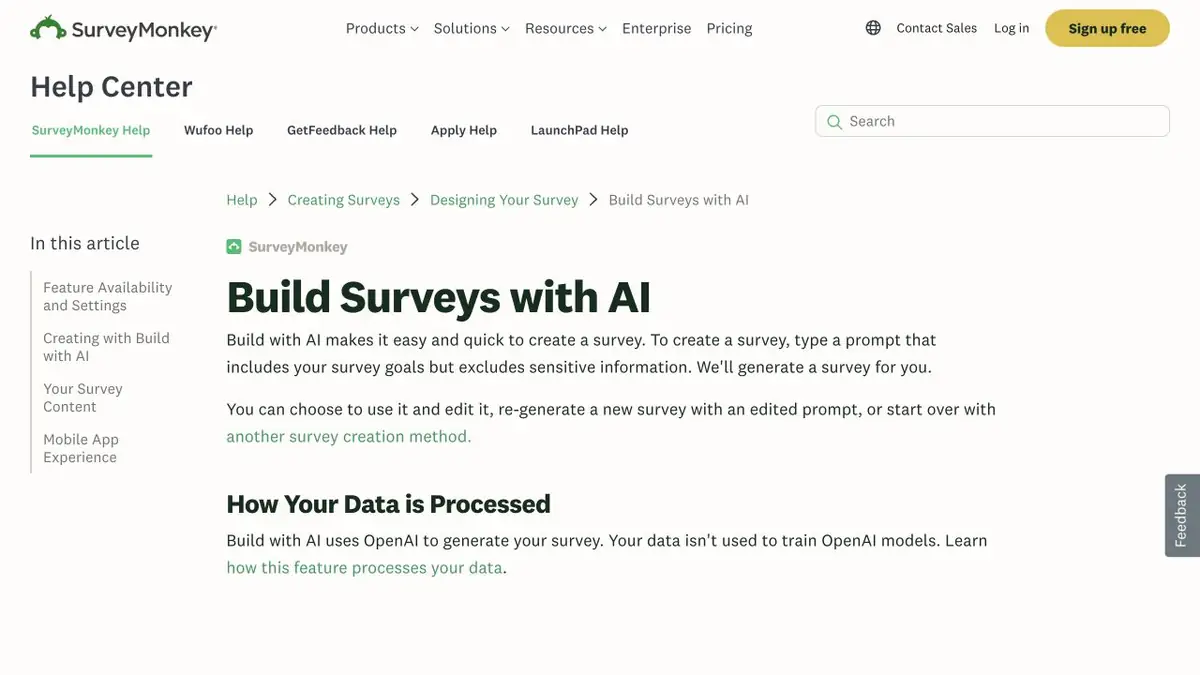
Build with AI creates a task description survey, and in the SurveyMonkey editor you can change questions and answers.
First, determine what response is needed.
A short questionnaire after the seminar helps to separate impressions from specific difficulties. In the description for Build with AI, specify the purpose, audience and what you want to know. Please find out which exercise participants lost time in, gives the editor a clearer task than the general request to evaluate the training. The questions received can be replaced or deleted.
Check the meaning of scale
Take a fictional course for new employees. A black question can ask at the same time whether the occupation was understandable and useful. Share the signs because the participant can give them different assessments. If there are scales from low to high and in reverse order, bring them to the same logic or clearly sign the edges. Answer Genius offers options for supported questions. Read each one to see if it covers real answers without crossing.
Test the questionnaire before launch
Open the preview and pass the questionnaire as a person who missed one of the blocks of the seminar. See if he gets into a mandatory question that he can't answer. Also check the mobile screen and the wording of the entry. If you compare the results of different groups, keep the key questions and the order of the scale unchanged. Separately record what has changed after the trial filling. Before distribution, once again open the link in a separate session to check the visibility of the questionnaire and the availability of the form for its recipients.
Suitable tasks
- Prepare a questionnaire for feedback about the lesson.
- Test questions and scales before publication.
Strengths
- Creates an editable survey from the description.
- Provides answers to supported questions.
Limitations
- The draft may contain leading or double questions.
- Access to functions and exports depends on the plan.
Selection and conditions
- Free access
- Not confirmed
- Trial period
- Not confirmed
- No sign-up required
- Not confirmed
- Russian interface
- Not confirmed
- Local installation
- Not confirmed
- API
- Not confirmed
“Not confirmed” means there is not enough information. The feature may still be available; check the developer’s terms.
- Input formats
- Text
- Result
- Text
Terms
Take the survey in a preview with several sets of answers.From task to first result
Practical example
- Task
- Prepare a questionnaire for feedback about the lesson.
- What to prepare
- The purpose of the training survey and the roles of participants. For a trial run, use fictional answers.
Task brief or prompt
Make a short survey after the seminar. Separately ask about the clarity and benefits of the lesson. Provide an option for the participant who missed the discussed block.
Expected result
Draft questions and answers, which can be passed in the preview mode.
How to check the result
- Go through all the branches with fictional answers.
- Check signatures and order of options on the scale.
An editorial teaching example of a task brief, not the result of hands-on testing of the service. Check that the required mode is available, that you have rights to the source material and that the intended use of the result is permitted.
Check details
Official sources
This description is based on the developer’s material. Features, prices and availability may change; check the primary source before use.