Hit'n'Mix editor to separate the finished mix, view selected batches and edit individual notes.
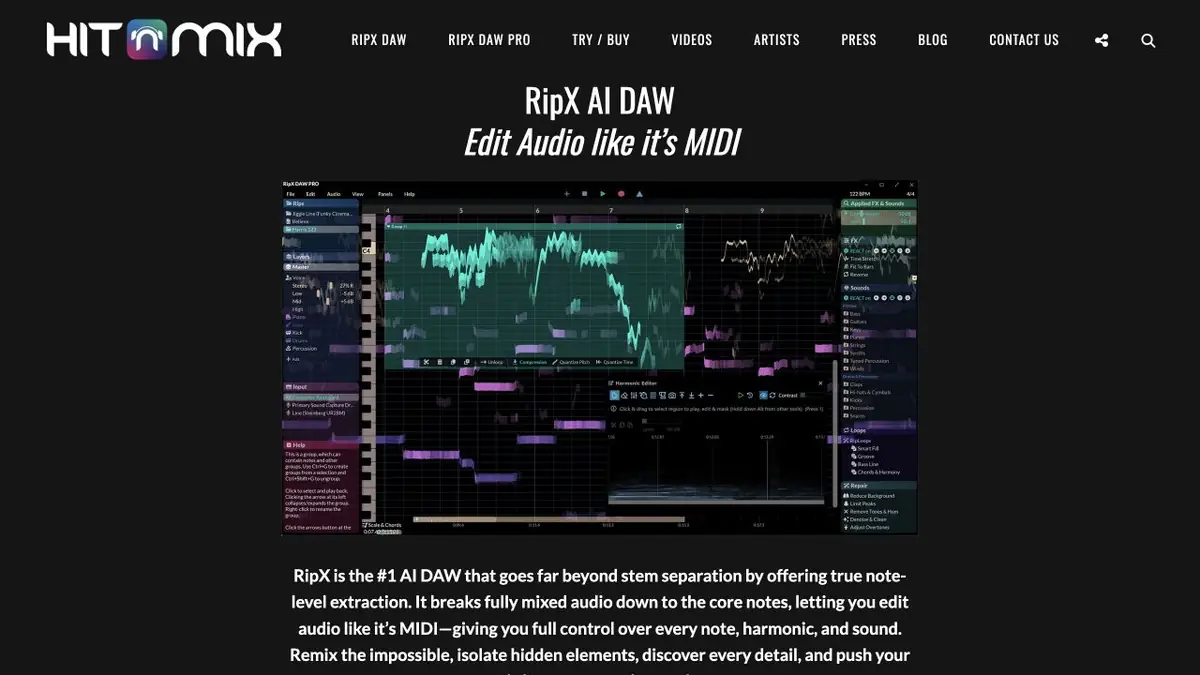
From Mix to Individual Party
RipX DAW splits the finished audio into several musical components. The program also shows the found notes and allows you to edit them inside the sound material. This can help when only a consolidated copy is preserved, and you need to study the bass line or correct one noticeable sound.
Immediately compare the selected track with the full mix. If the voice and instrument occupy a similar range or sound simultaneously, fragments of other sources may remain in the tracks. The effects and reflections of the room are also not always separated cleanly.
Example with bass rehearsal
Take the permitted portion of the song. Listen to the bass separately, write down the intended sequence of notes, then return to the full mix. The quiet sound in a separate track sometimes turns out to be the remainder of the drum beat. Check difficult places by ear and on the instrument.
If the task is related to editing the material, leave a copy unchanged. Compare the corrected snippet with adjacent bars to notice a volume spike or cropped tail.
Application of ready files
Separated tracks are useful for practice and rough editing. Before release or delivery to a client, check the rights to the original recording and listen to a full passage in context. RipX comes in editions with different tools. Choose according to the task, system requirements and output format. Save a short copy in the intended output format to check it.
Suitable tasks
- Select the bass from the allowed recording
- Fix a separate sound in the compiled fragment
Strengths
- Separation of tracks and editing of notes in one application
- Ability to listen to components separately
Limitations
- In the selected tracks you can hear the remains of other sources
- Automatic Selection Does Not Restore Original Tracks
Selection and conditions
- Free access
- Not confirmed
- Trial period
- Not confirmed
- No sign-up required
- Not confirmed
- Russian interface
- Not confirmed
- Local installation
- Not confirmed
- API
- Not confirmed
“Not confirmed” means there is not enough information. The feature may still be available; check the developer’s terms.
- Input formats
- Audio
- Result
- Audio
Terms
Desktop editor. Check the compatibility of the system and the desired functions of the selected edition.From task to first result
Practical example
- Task
- Select the bass from the allowed recording
- What to prepare
- Your own music recording or a file you have permission to process, with a part selected for separation.
Task brief or prompt
Task in the separation interface: isolate vocals and instrumental backing. First preview dense and quiet passages, then save the tracks and original if downloads are available. This processes an audio file rather than generating music from text.
Expected result
Separated audio tracks for listening and further editing, possibly containing leakage from other parts.
How to check the result
- Compare consonants, beats and sustained sounds with the original.
- Check synchronization, the beginning and the tail of downloaded files.
- Confirm that the chosen plan permits downloads.
- Check music rights and the intended use of the stems.
An editorial teaching example of a task brief, not the result of hands-on testing of the service. Check that the required mode is available, that you have rights to the source material and that the intended use of the result is permitted.
Check details
Official sources
This description is based on the developer’s material. Features, prices and availability may change; check the primary source before use.