

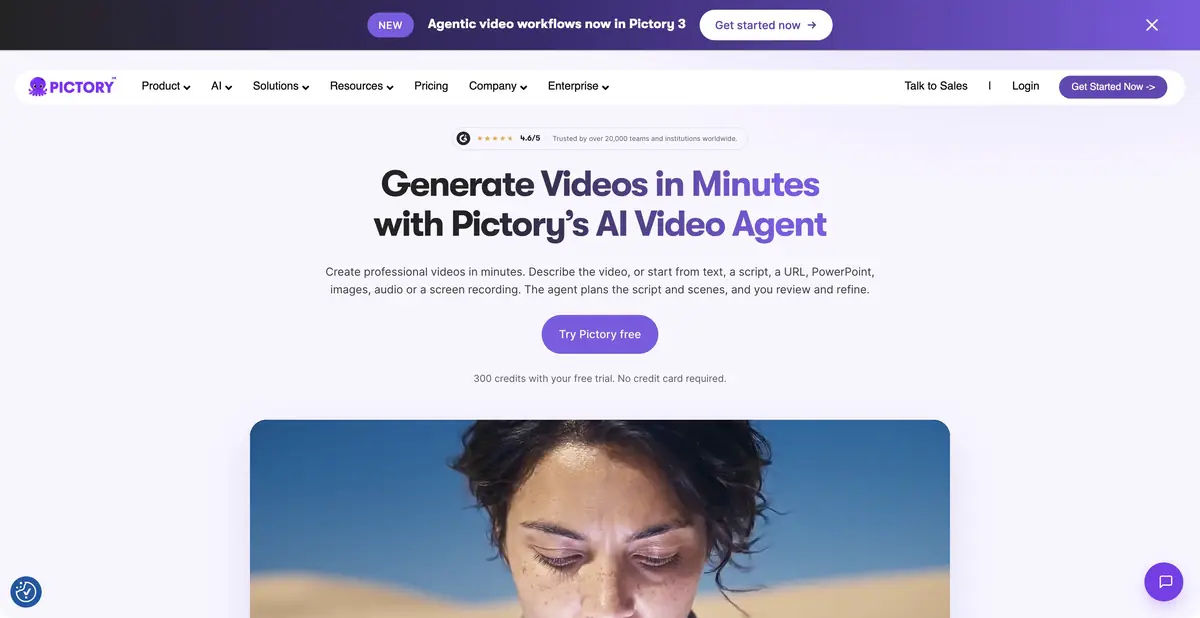
Pictory helps assemble an explainer video from text, a document or a recording. Automatically selected scenes, voice and subtitles remain a draft: check them against the task and source material.
When the source material is still only text
An article, instruction or presentation already explains the topic, but does not specify a video sequence. Pictory offers several ways to create a video: by idea, script, link, document, PDF or presentation. You can also work with your own recording. The choice of the source determines further verification: the text should be broken into thoughts, and the video should be viewed for pauses, extra parts and suitable fragments.
From text to scenes and then into a clear video
After importing, it is useful to first edit the script and sequence of scenes. Automatic selection of library or generated visuals helps to get started, but matching a picture with an individual word does not yet mean matching the meaning of the paragraph. This is especially evident in industry instructions and real products.
The platform describes voiceovers, synchronization with your own voice, subtitles, branding and text-based video editing. Separate subtitle export formats include SRT, VTT and TXT. These are useful when material needs editorial review or transfer to another video editing system.
Example: explaining a service without making false promises
Suppose a workshop wants to explain its repair process: request, diagnosis, approval and collection. First write a short script using your company's facts. Do not add standard timelines or prices that the company does not actually offer.
Check every scene: is the right tool shown, could a stock character be mistaken for your company's employee, and does the voiceover promise something absent from the text? For a real product, upload your own shot instead of using a similar stock object.
Then listen to the voiceover without the picture. If the steps are unclear by ear, return to the script. Viewers struggle when one sentence combines several actions but the shot shows only the last.
Existing video and automation
For uploaded recordings, features include text-based editing, key-moment search, automatic subtitles and supporting footage. Availability depends on the plan. Check where a text edit changes a cut: missing audio or an interrupted gesture can stand out more than a transcription error.
Pictory offers an official API with separate plans and integrations for recurring tasks. It is not automatically included in a regular editor subscription. Teams should decide in advance who checks the script, who approves visuals and which materials may be sent to the cloud.
Trial access and official sign-in
On the tariff page, a limited trial period is indicated, then paid plans with different volumes of generation, storage and functions. The trial quota cannot be presented as a permanent free video editing. The exact limits, watermark and avatar usage should be checked in the table of the selected plan.
Pictory works through its website and browser app. The developer specifically warns about unofficial mobile apps with similar names. Use links from the official domain to sign in and pay, and keep your source files separately from the cloud project.
Suitable tasks
- Turn your own script into an explanatory video
- Prepare a video based on an article or document
- Add voiceover and subtitles
- Create a repeatable video preparation process through the API
Strengths
- Multiple documented source types
- Editing of text, scenes and visuals
- Separate subtitle export
- Official integrations and a standalone API
Limitations
- Automatically selected footage may not match the meaning
- Trial period is not a permanent free plan
- API has its own plans and is not included in a regular subscription
Selection and conditions
- Free access
- Not confirmed
- Trial period
- Yes
- No sign-up required
- No
- Russian interface
- Not confirmed
- Local installation
- Not confirmed
- API
- Yes
“Not confirmed” means there is not enough information. The feature may still be available; check the developer’s terms.
- Input formats
- Text, Document, Video, Audio, Image
- Result
- Video, Text
Terms
The table shows a limited trial period; the main editor and API have different paid terms.From task to first result
Practical example
- Task
- Turn your own script into an explanatory video
- What to prepare
- A short instructional script and your own videos, photographs and voiceover demonstrating the action.
Task brief or prompt
Assemble instructions with sequential steps, clear captions and pauses to inspect details. Do not add unverified product properties. If a required shot is missing, flag the gap instead of inventing a demonstration.
Expected result
A rough edit of an instructional video. Available generation operations, formats and export options depend on the service and plan.
How to check the result
- The order of shots matches the actual sequence of actions.
- Captions are readable on a phone and do not obscure important details.
- Speech, music, subtitles and rights to each source material are verified.
- Check the watermark, resolution, storage and export format before paying or publishing.
An editorial teaching example of a task brief, not the result of hands-on testing of the service. Check that the required mode is available, that you have rights to the source material and that the intended use of the result is permitted.
Check details
Official sources
This description is based on the developer’s material. Features, prices and availability may change; check the primary source before use.


