

Figma AI brings assistants into the design workflow, from editing layers and images to prototyping in Make. Features depend on the Figma product, the user's seat and team permissions.
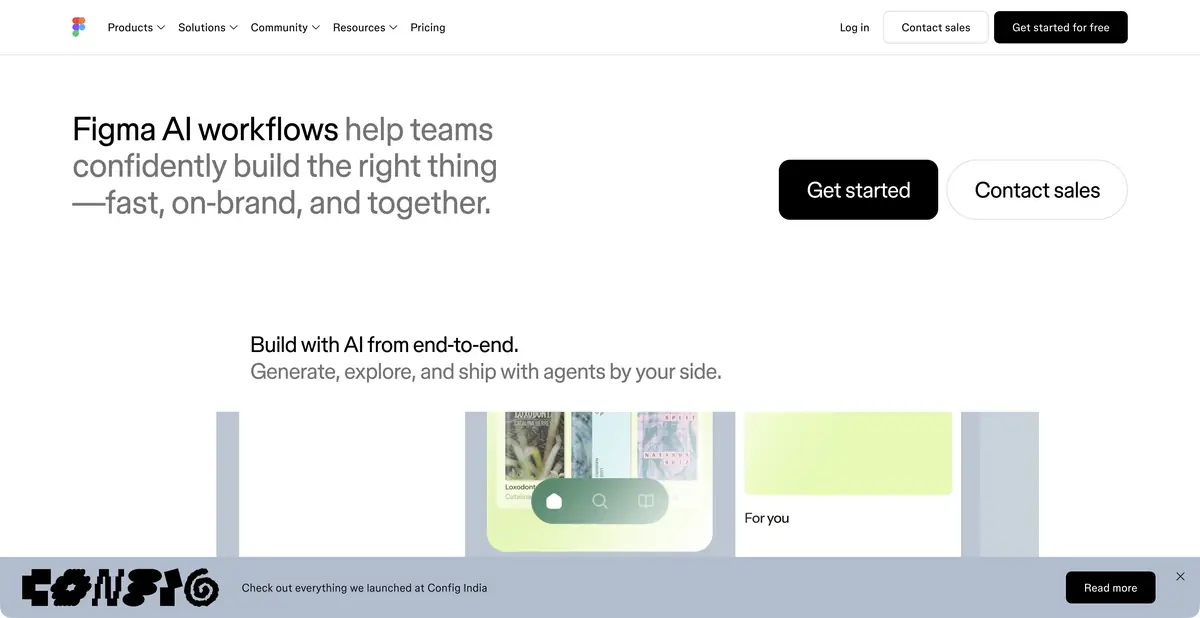
AI alongside the design system
In a team product, the aim is to use the correct component with the required states, not merely draw a similar button. Figma AI helps work with existing design context: find elements, make repetitive changes, edit images and refine layouts. It is a set of features within Figma, rather than a universal model with identical capabilities in every mode.
Design, images and prototypes
The current page describes an AI agent, image editing, text tools and Figma Make for turning an idea or design into a prototype and web app. Specific access varies by product and plan. New and early-access features cannot be assumed to be included for every member.
Visual tools include background removal, image editing and generation. A functional interface needs other checks: component consistency, hover and error states, long text and behavior at different sizes. One successful preview cannot confirm all these properties.
Example: align a settings screen
Take a sample notification screen and request several ways to group its settings. Specify which components and text are approved and which may change. Do not insert real user data into examples just to make them convincing.
After editing, check that setting names, toggle meanings and default states are preserved. Navigate backward and forward in the prototype. Separately check keyboard focus and the small-screen view: visually matching the design system does not guarantee accessibility.
Save the approved version in the shared component system. Otherwise, the next edit to a neighboring screen will again create similar but slightly different toggles, spacing and names for the same setting.
What does MCP give and where does an external agent work?
The official MCP server gives the agents a structured layout context and in supported modes allows you to change the content of the canvas. The documentation distinguishes between the role of the server and the role of the AI-agent: information about components and styles does not turn into ready-made production code automatically.
Figma Make and programmatic integrations serve different purposes. Handing a design to a developer, creating an interactive prototype and modifying an actual repository each require their own checks and permissions. Client, seat and call-rate limits are described in the developer documentation.
Credits, seats and team control
Figma uses an AI credit system. Credits are included in plans and seats, but amounts, renewal frequency and available actions vary. Some small features do not consume credits; agent task costs depend on complexity and context. Check exact limits and prices in the current table.
Administrators can manage AI access and terms for using materials. Before uploading a private project, check organizational settings and permission to share context with an external agent. After generation, perform the usual design and technical acceptance checks: AI assistance does not remove this requirement.
Suitable tasks
- Refine the interface taking into account the design system
- Prepare an interactive prototype in Make
- Edit images and text inside the design
- Pass structured context to an agent via MCP
Strengths
- AI embedded in an editable design workflow
- Working with components, text and images
- Make for prototypes and web applications
- Official developer ecosystem and MCP
Limitations
- Features depend on the product, seat, plan and administrator settings
- MCP context is not production-ready code
- Agent actions use credits depending on the task
Selection and conditions
- Free access
- Yes
- Trial period
- Not confirmed
- No sign-up required
- Not confirmed
- Russian interface
- Not confirmed
- Local installation
- Not confirmed
- API
- Yes
“Not confirmed” means there is not enough information. The feature may still be available; check the developer’s terms.
- Input formats
- Text, Image, Layout, Code
- Result
- Prototype, Image, Code, Layout
Terms
Starter includes limited AI credits. Feature access depends on the seat, product and administrator settings; MCP has separate permissions and limits.From task to first result
Practical example
- Task
- Refine the interface taking into account the design system
- What to prepare
- A description of three workshop-booking screens: service selection, time selection and confirmation. You can attach your own sketch.
Task brief or prompt
Propose an editable prototype of these screens with clear navigation. Show an empty time-slot list and an error for an unfilled field. Do not connect real bookings or payments yet.
Expected result
Draft layouts or an interface prototype. Working server-side logic and readiness for production launch are not implied.
How to check the result
- Check transitions, labels, empty states and returning to the previous screen.
- Make sure elements are legible and fit on a narrow screen.
- Separately check accessibility, the actual scope of export and required component rights.
An editorial teaching example of a task brief, not the result of hands-on testing of the service. Check that the required mode is available, that you have rights to the source material and that the intended use of the result is permitted.
Check details
Official sources
- Official AI capabilities of Figma
- Figma's plans
- Current AI credit rules
- Official MCP server
- Role of MCP and external agent
- Official API
This description is based on the developer’s material. Features, prices and availability may change; check the primary source before use.

