It looks for working files, links and information in the connected sources available to the user.
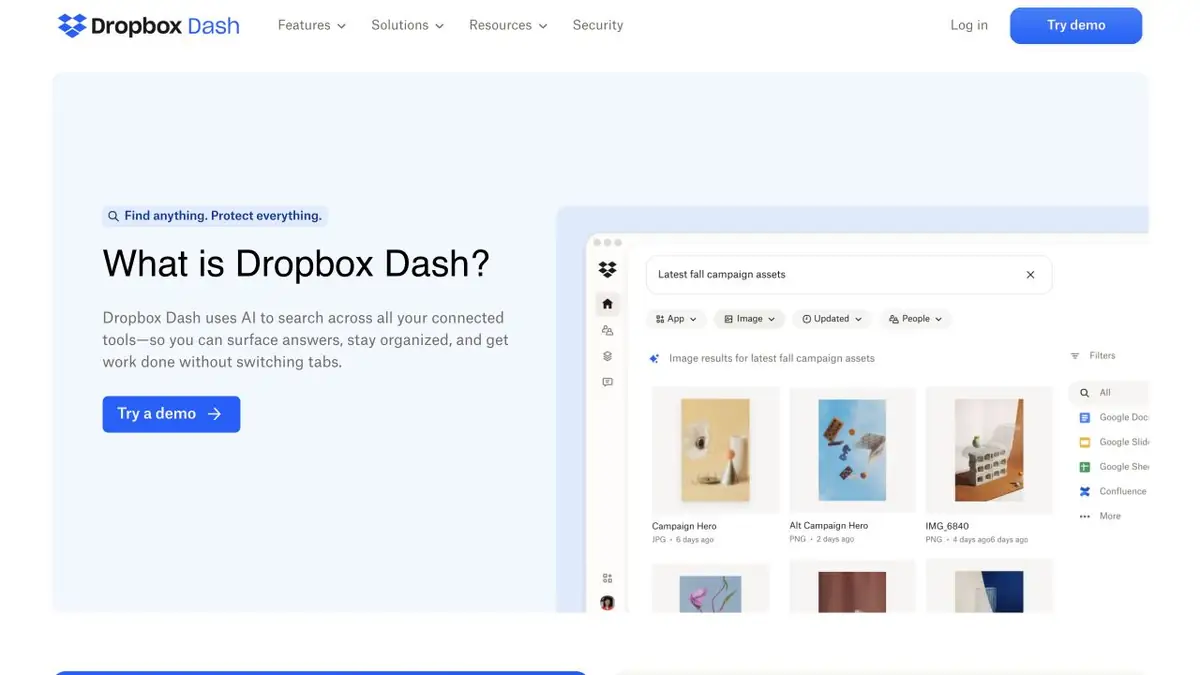
Find a file whose name you forgot
The layout was discussed in correspondence, and the final version was put in working storage. It is difficult to find it by one file name, because several drafts were called the same. Dropbox Dash searches for connected sources, which can include files, emails and other work materials. The set of results depends on the connections with applications and user rights.
Start with the details you remember. The project name, file type and author name usually help distinguish the result from the neighboring work.
Refine search before shipment
For the training test, put three similar documents in different available folders. In the latter, replace the size of the package and update the brief description. Find it by project name and size. Open the result in the application from which it came. Make sure this is an approved version and the previous number is not left in the text as a condition for another model.
When connecting multiple sources, check access from your colleague's account. If his rights are different, it is more convenient to link to an agreed workplace where he can already open the file.
Search Area
Before connecting applications, see what Dash can look for in each of them. For example, the ability to search for text within images depends on the interface. Take into account the time when new material appears in the results. For the final check, see the date and content in the source application.
Suitable tasks
- Find an approved version of the file
- Collect working links from multiple sources
Strengths
- Single search by connected applications
- The result leads to the found material
Limitations
- Connections and access rights are required
- Search within individual formats depends on the interface
Selection and conditions
- Free access
- Not confirmed
- Trial period
- Yes
- No sign-up required
- Not confirmed
- Russian interface
- Not confirmed
- Local installation
- Not confirmed
- API
- Not confirmed
“Not confirmed” means there is not enough information. The feature may still be available; check the developer’s terms.
- Input formats
- Text, Image, Document
- Result
- Text
Terms
Connect only authorized sources and check where the search is open.From task to first result
Practical example
- Task
- Find an approved version of the file
- What to prepare
- Your own bookmarks, a desk-lamp photo and an image of a note containing its dimensions.
Task brief or prompt
User task: save the materials, wait for processing and find them by the object and a word from the note. Compare automatic tags and recognized text with the originals.
Expected result
Found saved cards with verified tags and source links.
How to check the result
- Check the numbers and letters in the picture.
- Make sure you find the right source, not a similar image.
An editorial teaching example of a task brief, not the result of hands-on testing of the service. Check that the required mode is available, that you have rights to the source material and that the intended use of the result is permitted.
Check details
Official sources
This description is based on the developer’s material. Features, prices and availability may change; check the primary source before use.