Create three-dimensional captures, meshes, and Gaussian splats. The right capture mode depends on the subject and the device.
Choose the right capture output
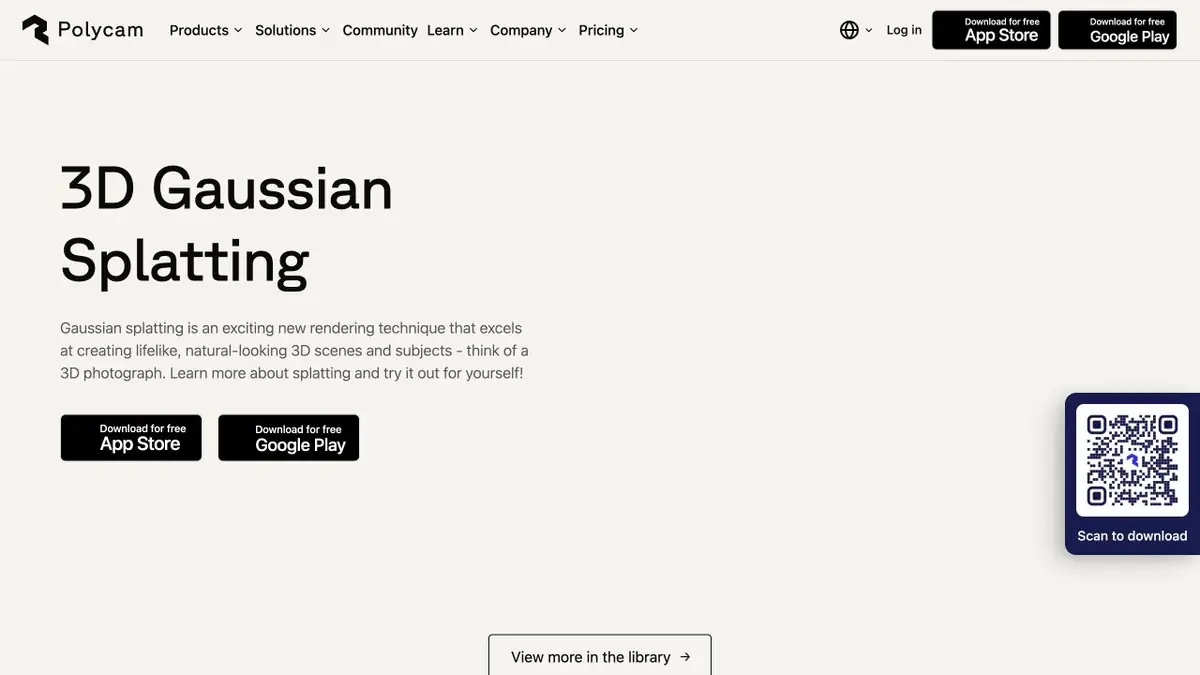
Polycam represents objects and spaces in several ways. Gaussian splats are useful when appearance from different viewpoints matters. A mesh is useful when you need to edit the geometry. On a supported device, AI Capture can start with an ordinary photo. If dimensions and the back of the subject matter, consider reconstructing it from a series of views instead.
Capturing an exhibition stand
To practice reconstructing a stand, walk in an arc and keep recognizable features in adjacent frames. Photograph the top from several angles. If a reflection keeps moving across a glossy sign, take another sequence with softer lighting. Before processing, select shots without visible motion blur.
Look at the result from a low point, where you can see the base-floor junction. Do not limit yourself to the initial view. Poor visibility behind the stand can only occur when turning. For a future reshoot, it is useful to record where the picture falls apart.
Transfer to another application
The Gaussian scene and editable polygonal model require different viewing tools. Before shooting, check that the selected format is supported by your editor and is available in the current plan. Images of transparent and shiny surfaces are useful to check on a small area. If the reconstruction is needed for measurement, use a verifiable scale benchmark and check the size independently. A beautiful view in itself says little about accuracy.
Suitable tasks
- Save the view of the room for a virtual walk
- Prepare a 3D model of your own subject
Strengths
- Importing a series of images and videos
- Choose between a mesh and a Gaussian representation
Limitations
- Weak overlap of personnel worsens reconstruction
- The stage presentation must be selected according to the task
Selection and conditions
- Free access
- Yes
- Trial period
- Not confirmed
- No sign-up required
- Not confirmed
- Russian interface
- Not confirmed
- Local installation
- Not confirmed
- API
- Not confirmed
“Not confirmed” means there is not enough information. The feature may still be available; check the developer’s terms.
- Input formats
- Image, Video
- Result
- 3D scene, 3D model
Terms
Operating modes are available on supported devices and in the browser. The availability of AI Capture, import and export must be verified with the plan.From task to first result
Practical example
- Task
- Save the view of the room for a virtual walk
- What to prepare
- His consecutive photos of one static scene, shot with overlapping angles.
Task brief or prompt
Restore the scene from photos and view it from a new perspective. Leave some of the original species for comparison.
Expected result
A scene that can be viewed in the viewer.
How to check the result
- Compare a few angles with the control images.
- Mark gaps, transparent areas and edges outside the shooting area.
An editorial teaching example of a task brief, not the result of hands-on testing of the service. Check that the required mode is available, that you have rights to the source material and that the intended use of the result is permitted.
Check details
Official sources
- Photo processing in Polycam
- Creating a model in AI Capture
- Importing frames and video
- Polycam Plans and Exports
This description is based on the developer’s material. Features, prices and availability may change; check the primary source before use.