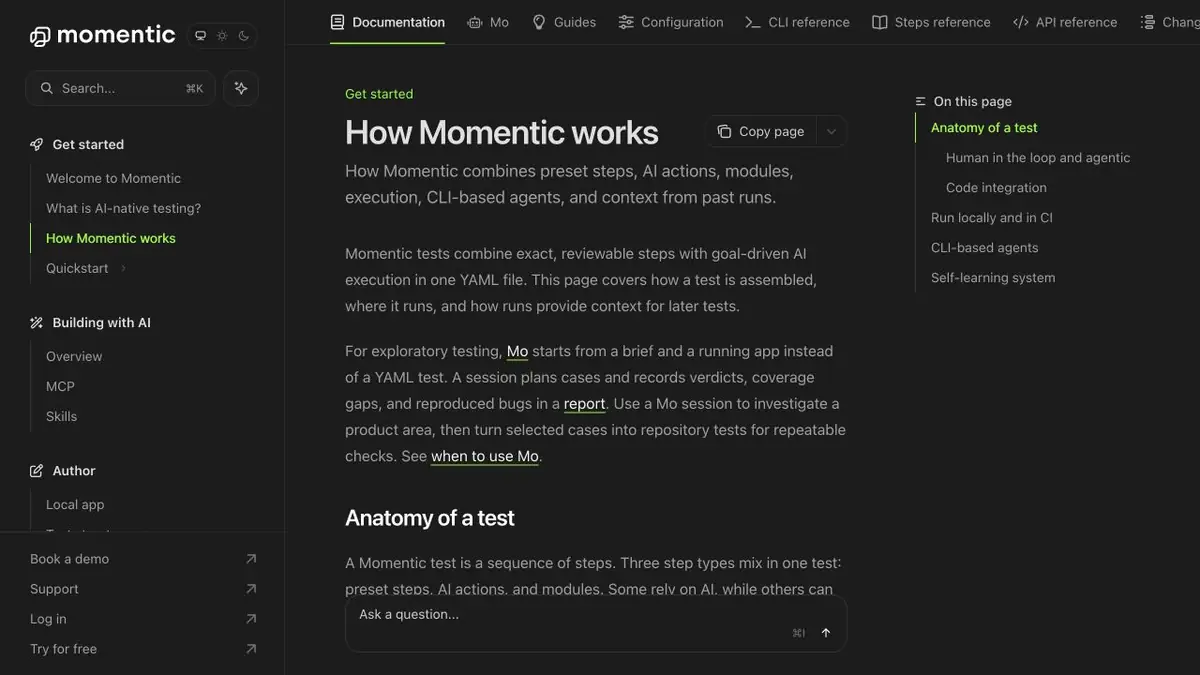
Momentic executes browser-based scenarios in which some actions and checks can be described in words. The exact steps remain useful when the choice is ambiguous.
When an accurate selector breaks from layout
In the form of delivery, the button was moved from the right corner down. For the user, nothing significant has changed, and the old test can no longer find the item. Momentic allows you to describe some of the actions through their purpose. For example, you can specify that you need a save button in the delivery unit. This step should be checked separately if the page has a similar button for contact information.
Checking the address after saving
In the test environment, open an order with a known address. Change one line, save, and wait for completion. Reopen the order and verify the new value. A save notice can appear despite a processing error, so reading the field again is a better check. Restore the original state or use a separate record for the second run so it cannot pass using data saved by the first.
Disassessing the wrong click
Run the workflow against two versions of the form. Compare the screenshot of the step with the actual state. If the instruction is too broad, name the visible label and nearby section. Where an exact comparison matters, use the expected value. Include a negative test with a field that does not save to check that the test catches the defect. Matching text elsewhere on the page should not count. Test a language change separately from a layout change.
Suitable tasks
- Check script after layout change
- Add meaningful verification of the result of the action
Strengths
- Supports steps with a description of the purpose in words
- The official guide explains the combination of different types of steps
Limitations
- A vague command may have several suitable elements
- Launching should be carried out in a controlled test state
Selection and conditions
- Free access
- Not confirmed
- Trial period
- Not confirmed
- No sign-up required
- Not confirmed
- Russian interface
- Not confirmed
- Local installation
- Not confirmed
- API
- Not confirmed
“Not confirmed” means there is not enough information. The feature may still be available; check the developer’s terms.
- Input formats
- Text, Code
- Result
- Text, Code
Terms
The plan and conditions of use depend on the way the team works. The presence of the desired number of launches check with the developer. A vague command may have several suitable elements.From task to first result
Practical example
- Task
- Check script after layout change
- What to prepare
- Two versions of the training interface, an order card and a verifiable saving result.
Task brief or prompt
Press the save button in the delivery unit. Open the card again and check the new address. Repeat the script after reshuffle.
Expected result
Browser test with result verification on two versions of the interface.
How to check the result
- Verify the action by log and step snapshot.
- Make sure the test drops if the data is not saved.
An editorial teaching example of a task brief, not the result of hands-on testing of the service. Check that the required mode is available, that you have rights to the source material and that the intended use of the result is permitted.
Check details
Official sources
This description is based on the developer’s material. Features, prices and availability may change; check the primary source before use.