

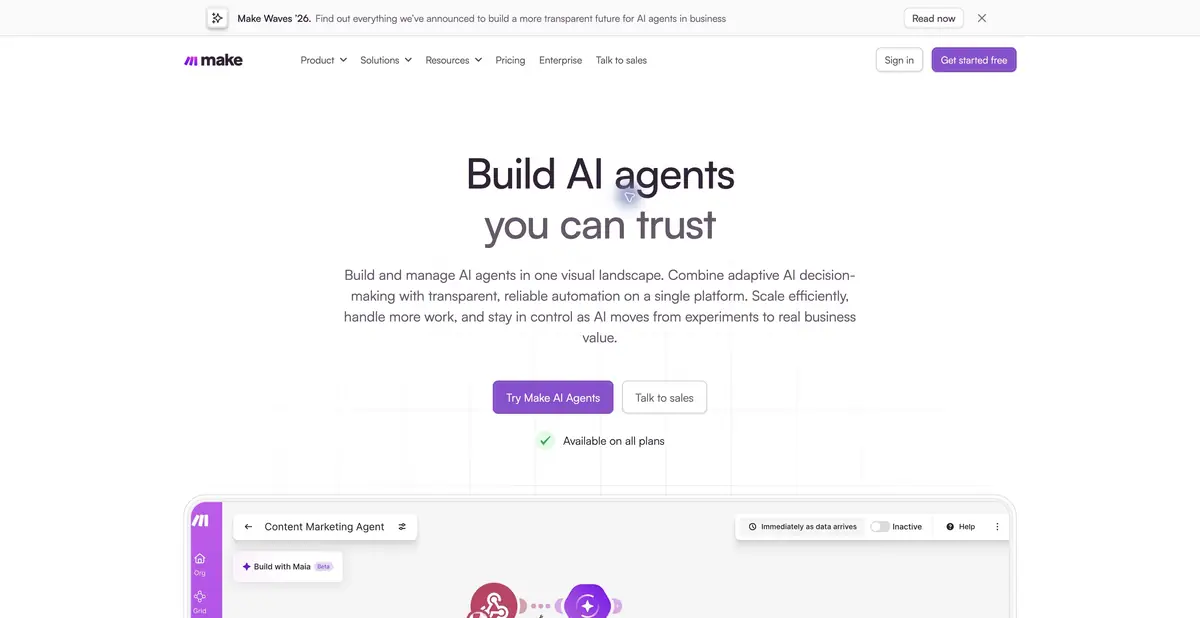
Make AI Agents connects a language model to tools in Make’s visual platform. The agent makes decisions within a workflow, while surrounding modules pass data, check results, and execute specified actions.
Set goals and visible boundaries
An agent helps when inputs vary in meaning: interpret a request, choose an information source, prepare a draft, or determine the next step. The surrounding workflow retains more precise logic: where an event came from, which object may be changed, and where the result will go.
The current Make AI Agents New integrates directly into Scenario Builder. Official help emphasizes building, running, and inspecting workflows in one place. The service is in open beta, so behavior and terms may change. Check older app instructions against the new module rather than assuming they apply universally.
Model, knowledge and tools
Setup involves choosing a provider, model, and instructions, then adding tools and context. Knowledge helps answer questions; a tool performs operations. Keep these roles distinct. A document describing a CRM does not authorize CRM changes until the appropriate action is connected.
Make AI Provider is available on the free plan; your own providers require paid plans. This does not mean all models cost the same. Call counts and context size affect usage, and an external model accessed with your own key has its own bill. Installing an external connector locally does not make the cloud agent an offline tool.
Example: check an equipment request
Prepare a test table of available devices and a fictional employee request. The agent must find a suitable option, cite the row used, and draft a record for approval. Prohibit changing stock levels or placing an order before review. If nothing matches, it should ask an explicit question instead of inventing availability.
Test an incomplete name and two devices with similar specifications. Inspect the history for the tool called and arguments supplied. A correct summary cannot compensate for searching the wrong table. Repeat the check after changing the source: context and live data may update differently.
Credits, API and operation
Make measures usage in credits. One workflow may perform many operations, while AI components consume resources under their own rules. The free platform quota is limited; agent availability on every plan does not mean unlimited compute. Before scheduling regular runs, check what happens when resources run out or an event arrives again.
Developer Hub provides separate beta endpoints for creating, modifying, and running AI Agents. This is the platform’s own API, distinct from calling another provider’s API within a workflow. Integration requires a token and suitable permissions; check the current documentation to see whether a specific method is compatible with the new app. Assess the workflow’s result through records and action logs, rather than a single text response.
Suitable tasks
- Add AI decision-making to a visual workflow
- Process requests with checks against a table
- Inspect tools and run arguments
- Integrate agent through documented beta API
Strengths
- An agent and standard modules in one workflow
- Context and tools are set separately
- The product’s own AI Agents endpoints
Limitations
- Features and terms may change during open beta
- The Free plan limits the quota and provider choice
- Check API documentation and older guides against the new app
Selection and conditions
- Free access
- Yes
- Trial period
- Not confirmed
- No sign-up required
- No
- Russian interface
- Not confirmed
- Local installation
- Not confirmed
- API
- Yes
“Not confirmed” means there is not enough information. The feature may still be available; check the developer’s terms.
- Input formats
- Text, Data
- Result
- Text, Data
Terms
Make AI Agents New is in open beta. Free uses Make AI Provider within a limited quota; BYOK is available on paid plans. Its own AI Agents API endpoints are in beta; check compatibility with the new app for each method.From task to first result
Practical example
- Task
- Add AI decision-making to a visual workflow
- What to prepare
- A demonstration form request: “I can’t sign in after changing my email.” Three request categories and a test table without personal data are available.
Task brief or prompt
Set up a practice request-handling workflow: read the text, choose an allowed category, and prepare a short description for an employee. If information is insufficient, use “Needs review.” Write the result only to the test table. Do not message the customer or modify their account.
Expected result
A verifiable record in a test table and a log of completed steps; this is an automation setup task, rather than a demonstrated run result.
How to check the result
- Check that the category matches the original request and no data was invented.
- Repeat the same event: the workflow must not create a duplicate or trigger outbound sending.
An editorial teaching example of a task brief, not the result of hands-on testing of the service. Check that the required mode is available, that you have rights to the source material and that the intended use of the result is permitted.
Check details
Official sources
- Make AI Agents: official product
- Make: Setting up a new AI agent
- Make: new AI Agents app and beta conditions
- Make: plans, credits, and billing
- Make: the platform’s official API
This description is based on the developer’s material. Features, prices and availability may change; check the primary source before use.