

Helps to parse PDF in Acrobat, get a summary and find the sources of answers.
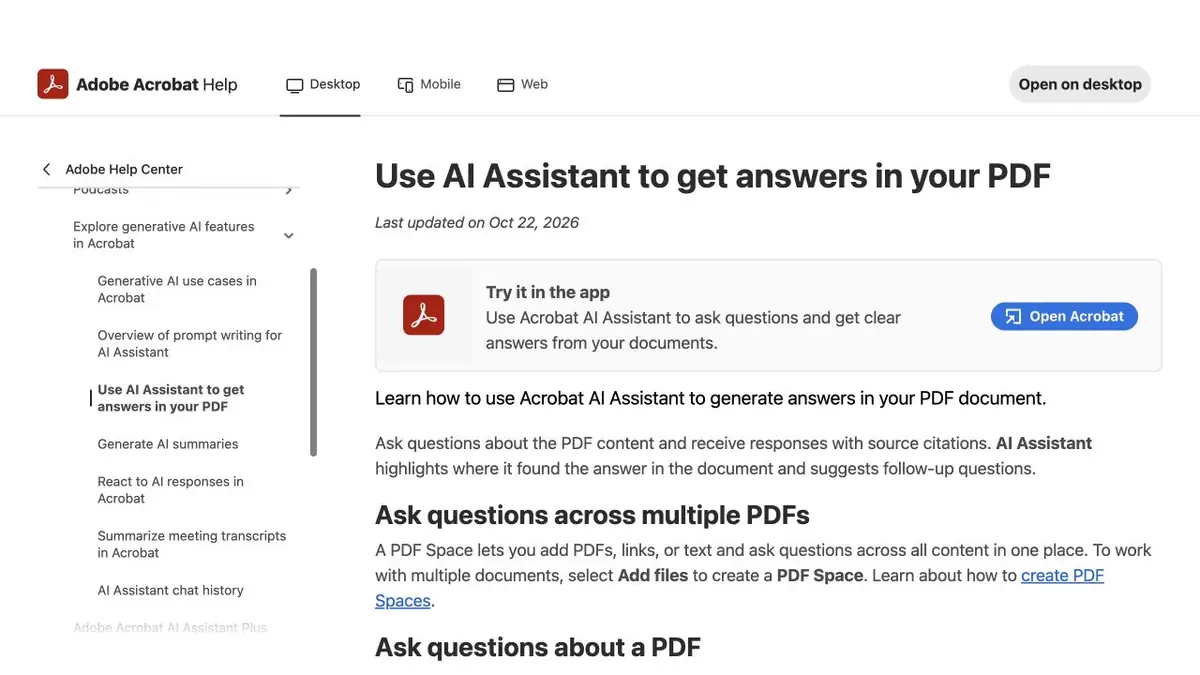
Working with PDF inside Acrobat
AI Assistant is built into the Adobe Acrobat ecosystem. It answers questions about the content of the document and helps to compile a summary. References in the answers allow you to go to the material on which the statement is based. If a colleague already has an open document in Acrobat, it is easier for him to check the passage right there.
For multiple files, Adobe offers PDF Spaces. In such a space it is convenient to keep materials of one project together. Separately, see what modes are available in the desired version of Acrobat.
To compile a summary of the project materials
Add three training files to one PDF Space: terms of reference, meeting protocol and a list of changes. Ask what tasks are agreed and what are still being discussed. Ask for the source document for each item. Then open the quoted places and check if the assistant took the draft period from the protocol for an approved decision.
If one of the files contains a table with notes, check both parts next to each other. Separately write out lines where numbers depend on the category of goods. For the final note, links to verified pages are needed.
What to check before connecting
Access is associated with an Adobe account and a suitable Acrobat or add-on option. Features have requirements for files, languages and environments. For archival scans and secure documents, first open the technical help. Even when the answer is provided with a quotation, the decision on the terms of the contract is made after an independent reading.
Suitable tasks
- Collect a summary of the files in PDF Space
- Disassemble the contents of a large file
- Prepare a summary for the working discussion
Strengths
- Work in Acrobat environment
- Transition from response to PDF fragment
Limitations
- Access depends on Acrobat offer
- The applicability of the quote is checked by the person
Selection and conditions
- Free access
- Not confirmed
- Trial period
- Not confirmed
- No sign-up required
- Not confirmed
- Russian interface
- Not confirmed
- Local installation
- Not confirmed
- API
- Not confirmed
“Not confirmed” means there is not enough information. The feature may still be available; check the developer’s terms.
- Input formats
- Document, Text
- Result
- Text, Document
Terms
Functions depend on the plan, file type and Acrobat supported environment.From task to first result
Practical example
- Task
- Collect a summary of the files in PDF Space
- What to prepare
- Specification, protocol and change list for a fictional project.
Task brief or prompt
Add files to PDF Space. Ask for agreed tasks and open questions. Check the source for each item.
Expected result
A project summary that can be checked against the source files.
How to check the result
- Open the quoted places in each file.
- Separate the approved deadlines from the ones proposed.
An editorial teaching example of a task brief, not the result of hands-on testing of the service. Check that the required mode is available, that you have rights to the source material and that the intended use of the result is permitted.
Check details
Official sources
This description is based on the developer’s material. Features, prices and availability may change; check the primary source before use.