

Tabby gives hints in the editor and supports chat. The command selects where the server works, which models are responsible for different functions and which repositories are available.
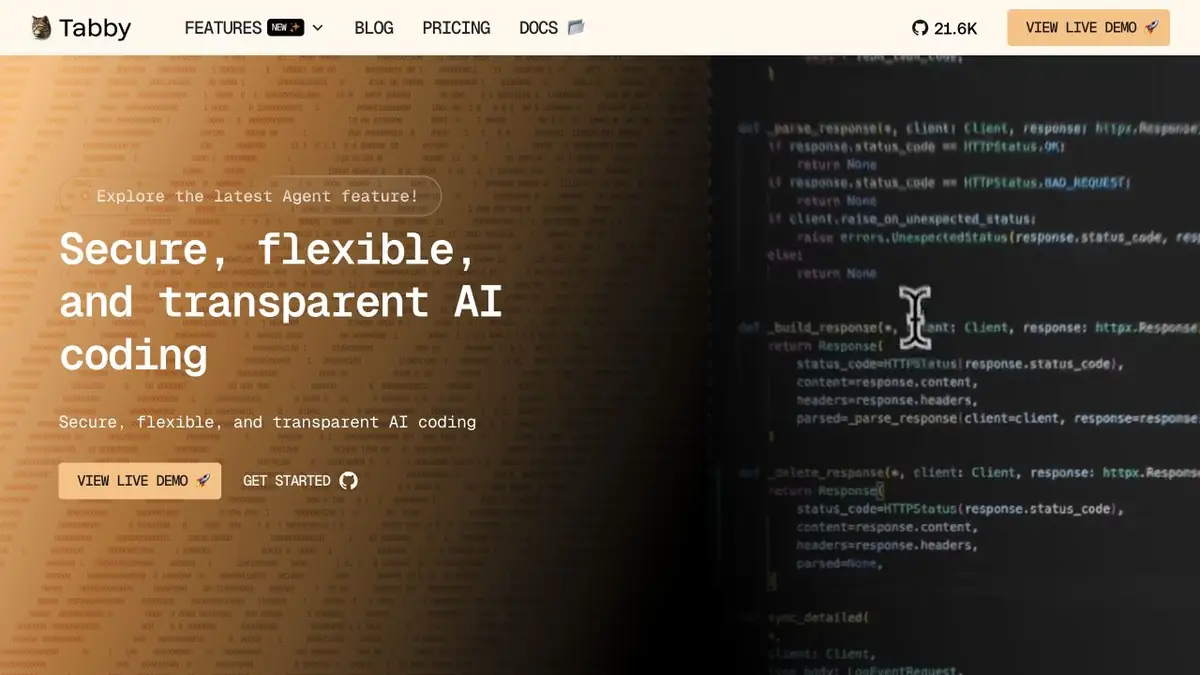
Model for hints and model for dialogue
Tabby works according to the scheme with the server and the editor extension. Autocomplete should respond quickly enough while the developer is typing. For dialogue, the processing of the question and context is more important. Help describes the configuration of models for different tasks. Therefore, the same choice for tips and chat is worth checking separately.
Start with a small repository where you can assess the delay and relevance of proposals. First complete the normal function, then ask about related calls. Do not compare answers by length. For auto-completion, a short hint is useful, which fits into the already typed code.
Training example with parser
Add a test configuration parser that handles an empty string and an unknown key. See whether the extension suggests suitable branches while you type. Then ask in chat which path each input takes. Compare the answer with the code. If the agent refers to another version of the function, check which project is open and whether the relevant repository is accessible.
At the second iteration, measure how long it takes to respond to the same equipment. Switching to a larger model can improve individual responses and make auto-completion uncomfortable.
Where the processing takes place
Tabby can be placed at home. When setting up an external endpoint, the model can be on another machine or at the supplier. If the task requires full local processing, check all custom model addresses and query routes before opening the closed code.
Suitable tasks
- Connect auto-completion to the editor via an internal server
- Separate models for hints and dialogue
Strengths
- The developer describes local model options
- Model endpoints are configurable
Limitations
- The size of the model and equipment affect the speed of work
- When connecting an external model, check what context is sent to it
Selection and conditions
- Free access
- Yes
- Trial period
- Not confirmed
- No sign-up required
- Not confirmed
- Russian interface
- Not confirmed
- Local installation
- Yes
- API
- Not confirmed
“Not confirmed” means there is not enough information. The feature may still be available; check the developer’s terms.
- Input formats
- Code, Text
- Result
- Code, Text
Terms
Source code is available. Its deployment requires computing resources, and external modeling service can charge. When connecting an external model, check what context is sent to itFrom task to first result
Practical example
- Task
- Connect auto-completion to the editor via an internal server
- What to prepare
- Tutorial parser, two examples of login and test project in the editor with Tabby configured.
Task brief or prompt
Explain which branch of the parser works for an empty string and for an unknown key. Specify the related checks.
Expected result
Explain two ways of processing and hints at the site of test expansion.
How to check the result
- Compare the answer to the open version of the code.
- Check the model server addresses before connecting a closed project.
An editorial teaching example of a task brief, not the result of hands-on testing of the service. Check that the required mode is available, that you have rights to the source material and that the intended use of the result is permitted.
Check details
Official sources
This description is based on the developer’s material. Features, prices and availability may change; check the primary source before use.